
ZeroPortal – Quickstart
This guide walks you through installing a single ZeroPortal server in about 30 minutes: database, portal, configuration wizard, and first login in the browser. Each step is illustrated with a screenshot. Everything else is covered in two other documents: the Quick Admin Guide connects the first workstation and deploys the first applications, the Administration Handbook covers background, permissions, operations, and high availability.
1. Prerequisites
| What | Requirement |
|---|---|
| Server | Windows Server (64-bit), local administrator rights. Must be a domain member to log in with a Windows account; without a domain, see the box in wizard step 3 |
| Database | MariaDB 11.8 or 12.3, both Long-Term Support (LTS) series. Installer from mariadb.org (Windows, x64) |
| Portal | ZeroPortal-<Version>.msi from https://zeroportal.de/download |
| .NET | Nothing to install. The portal package includes the runtime |
| Administrators | An AD group whose members manage the portal, e.g. Company\ZeroAdmins |
| Network | An HTTPS port for the portal, default 8080. The wizard opens the Windows Firewall |
The order is fixed: MariaDB first, then the portal MSI, then the wizard. Setup checks for an installed MariaDB and warns if it is missing or older than 11.8.
2. Install MariaDB
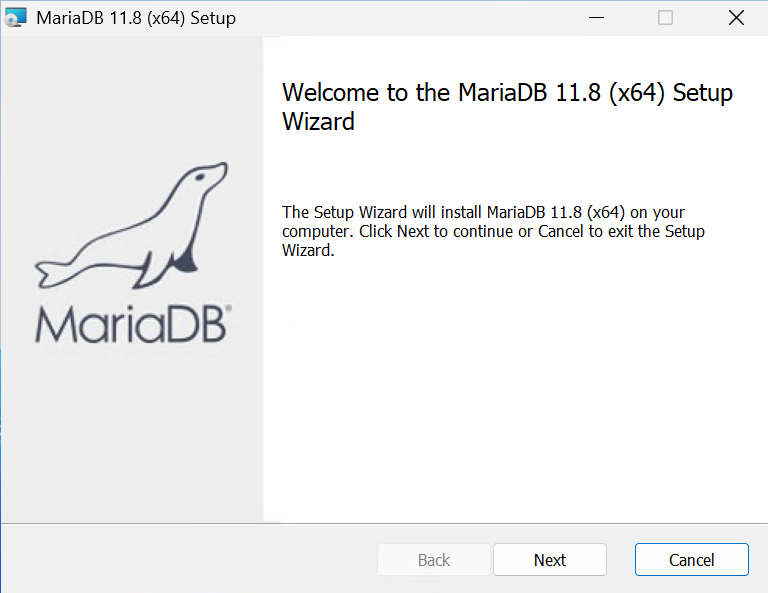
Start the installer and click Next on the welcome page.
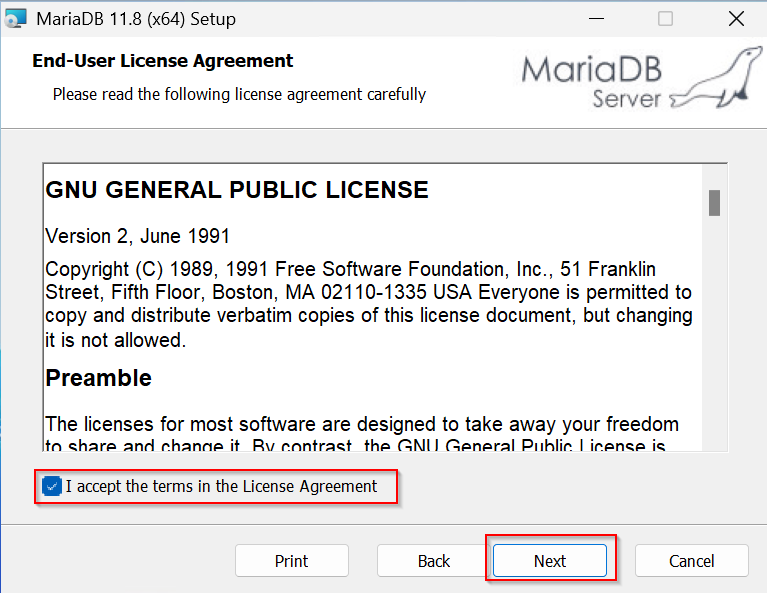
Accept the licence (GPL v2).
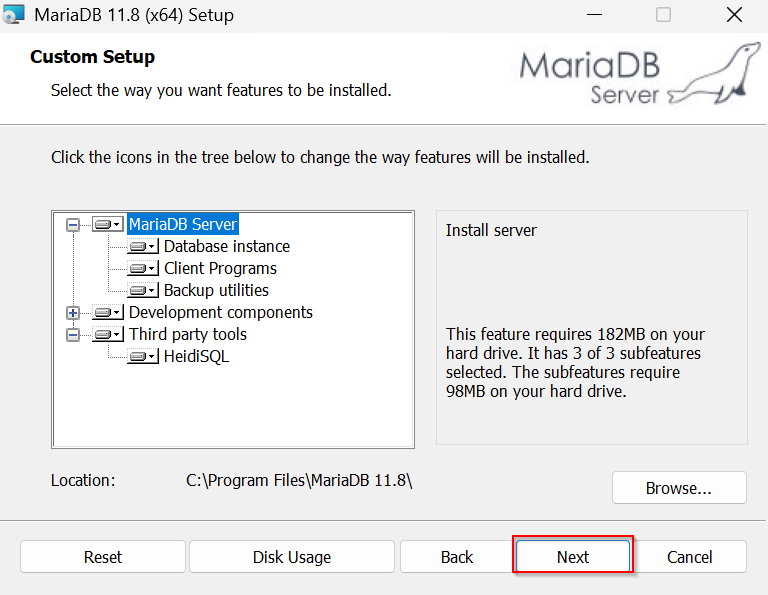
Leave the feature selection and installation folder at their defaults. ZeroPortal will
later look for the configuration file my.ini only in the data folder next to bin,
exactly where the installer puts it.
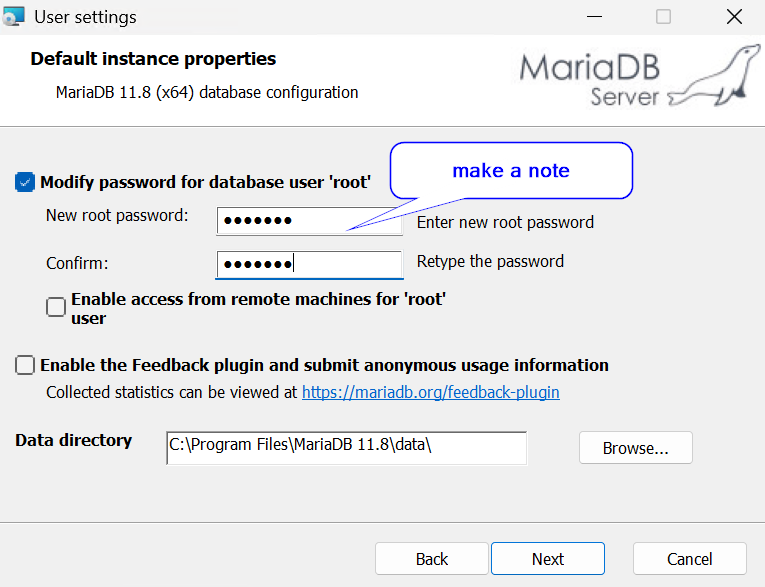
Set a password for root and write it down. The wizard needs it once to create the database and the user. Leave Enable access from remote machines off; keep the data directory at its default.
Install as a service (name MariaDB), leave network access on port 3306 enabled. The
default InnoDB settings are fine to get started.
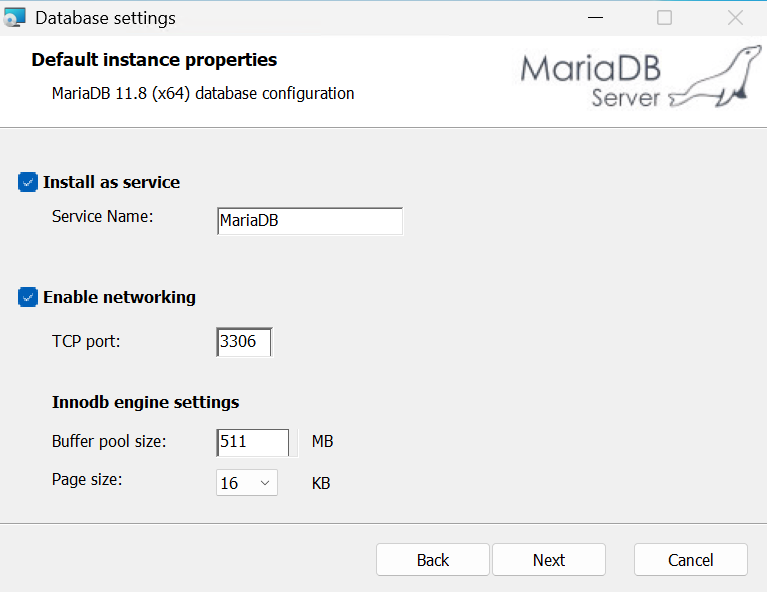
Confirm the summary with Install and close the wizard with Finish. The service is then running.
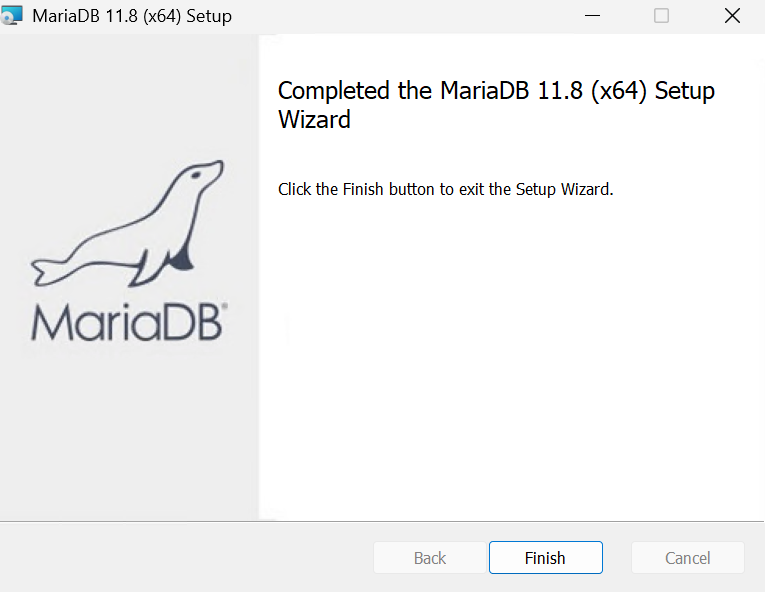
3. Install ZeroPortal
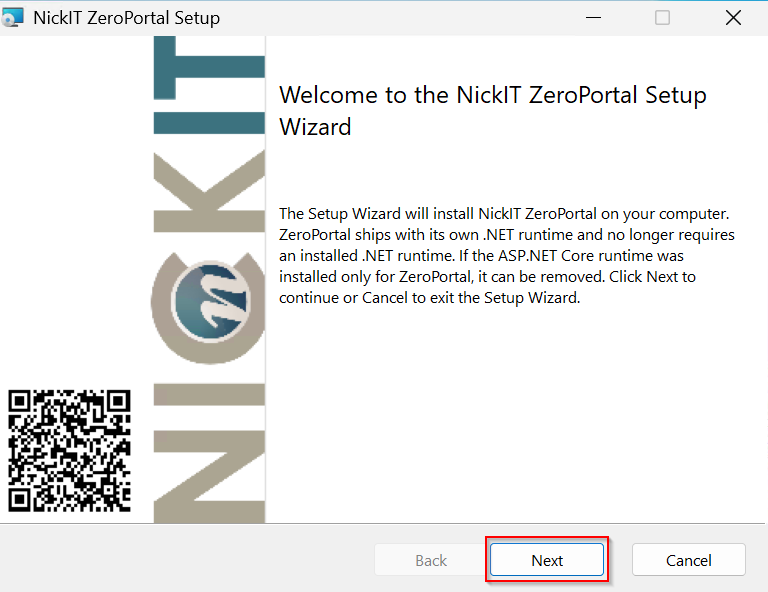
Download the MSI from https://zeroportal.de/download and run it. The welcome page notes that a .NET runtime is no longer required.
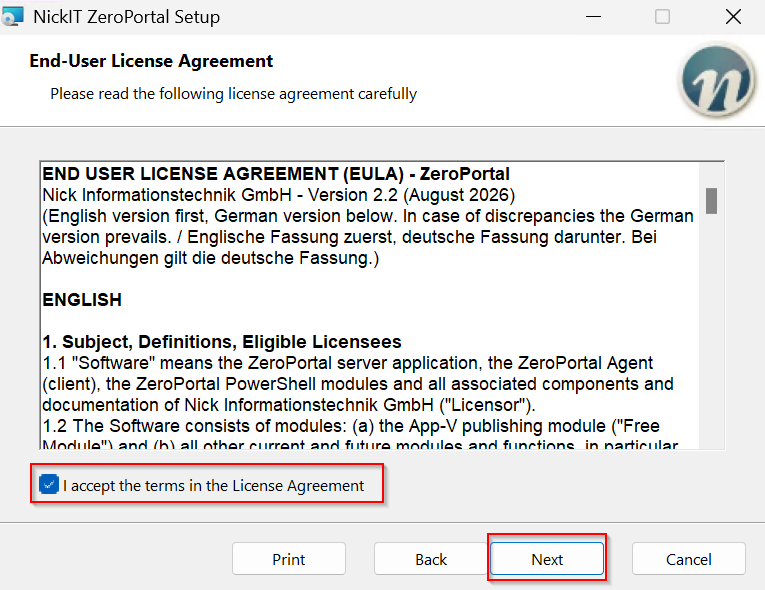
Read and accept the licence agreement.
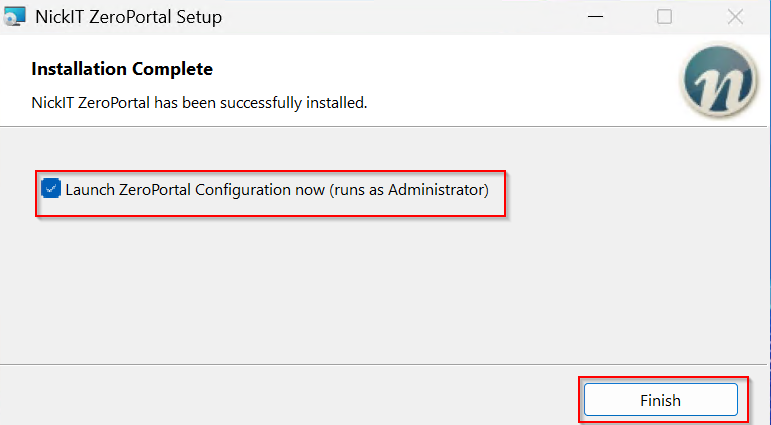
On the final page, leave Launch ZeroPortal Configuration now selected. The wizard
runs as an administrator because it writes to C:\Program Files\ZeroPortal, sets up the
service, opens the firewall, and imports the certificate.
Later you can start the wizard again from C:\Program Files\ZeroPortal\ZeroPortalConfigTool.ps1
(as administrator), for example after a portal update or to make a change.
4. The configuration wizard
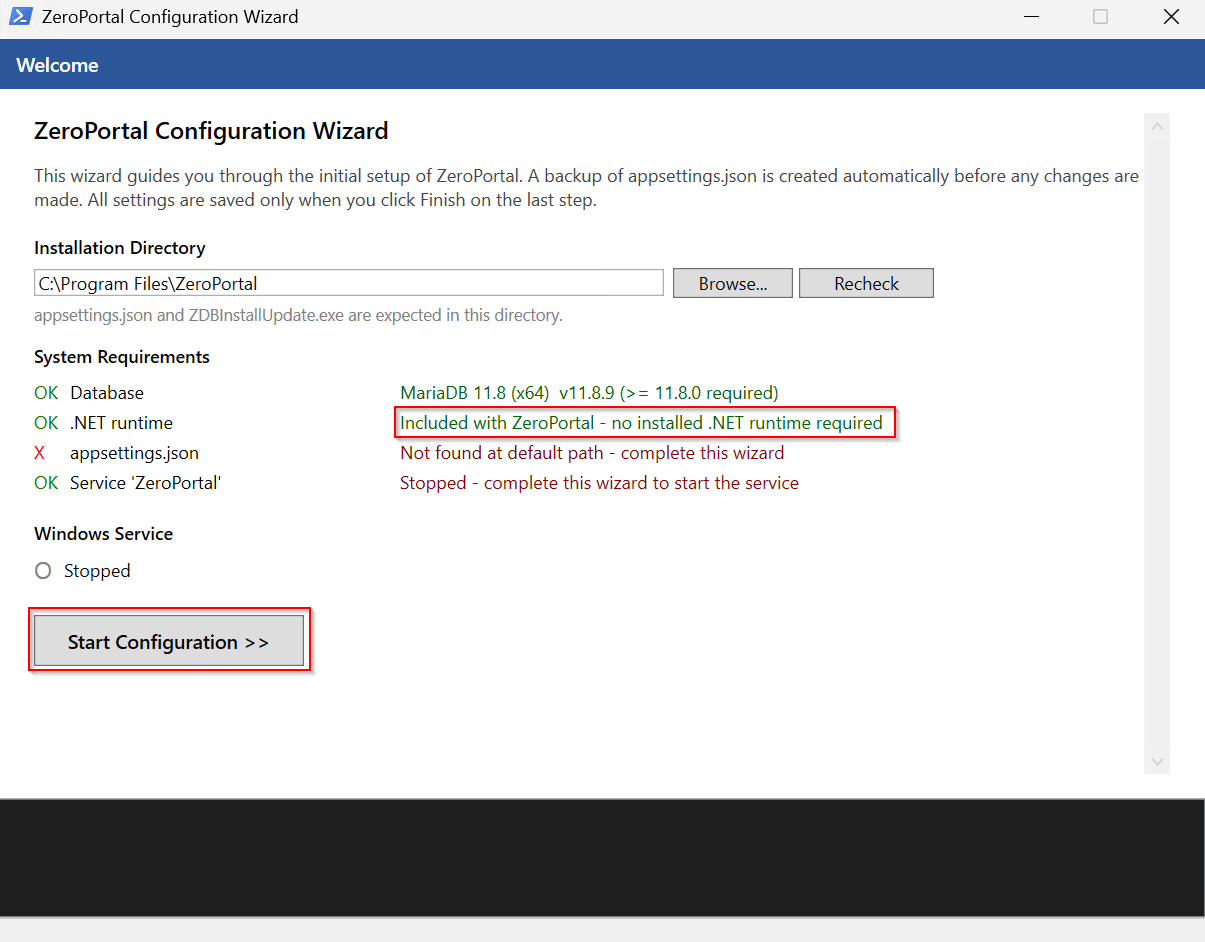
The welcome page checks the prerequisites. Database and .NET runtime must show
OK. appsettings.json being missing and the service being stopped is normal on a first
install; the wizard handles both. Click Start Configuration to begin.
Step 1: Certificate
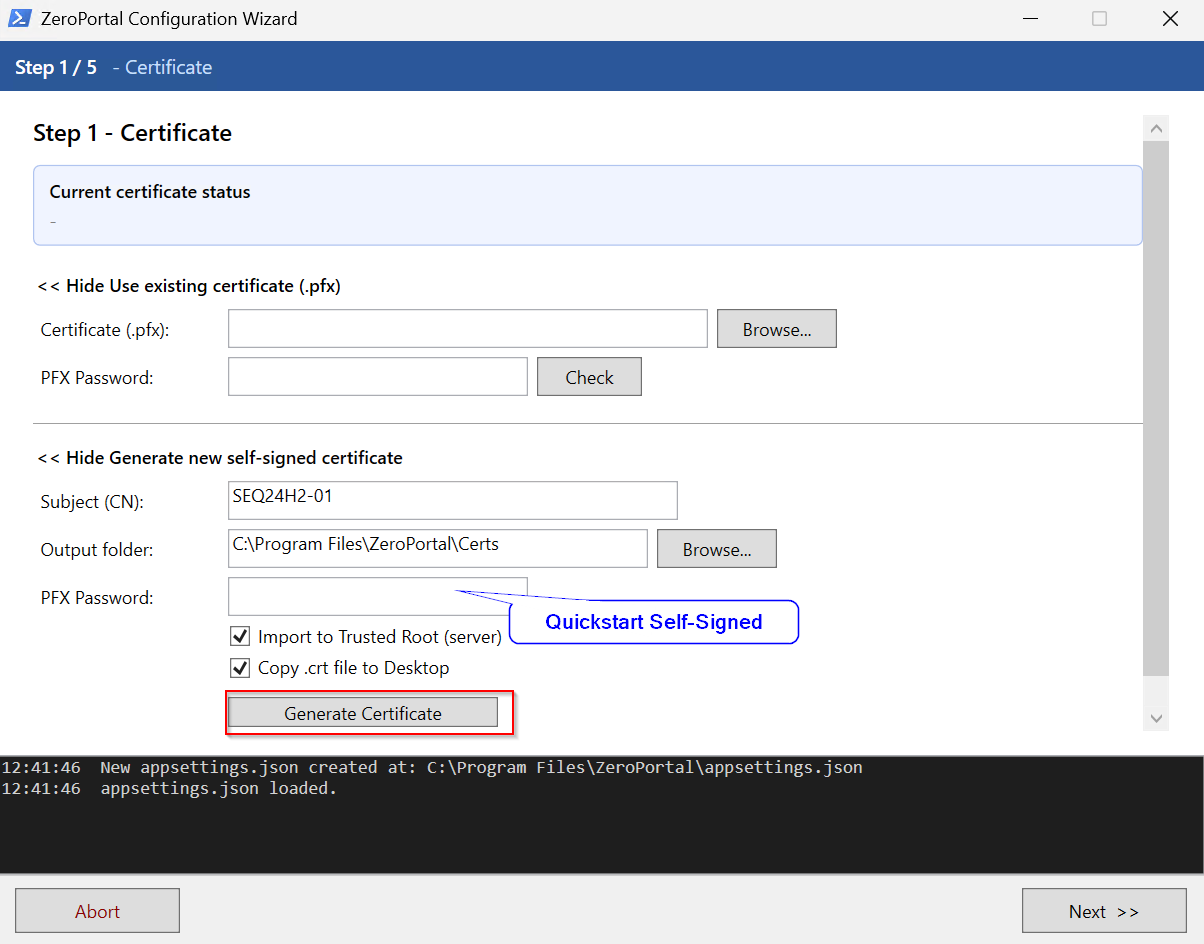
The portal speaks HTTPS only. Either import an existing PFX file or generate a self-signed certificate. For a quickstart, the self-signed certificate is enough: the subject is the server name, choose any PFX password (it is stored encrypted, you won't need it again). Import to Trusted Root makes the certificate trusted on the server; Copy .crt file to Desktop gives you the file you distribute to clients (Quick Admin Guide, chapter 3). Select Generate Certificate.
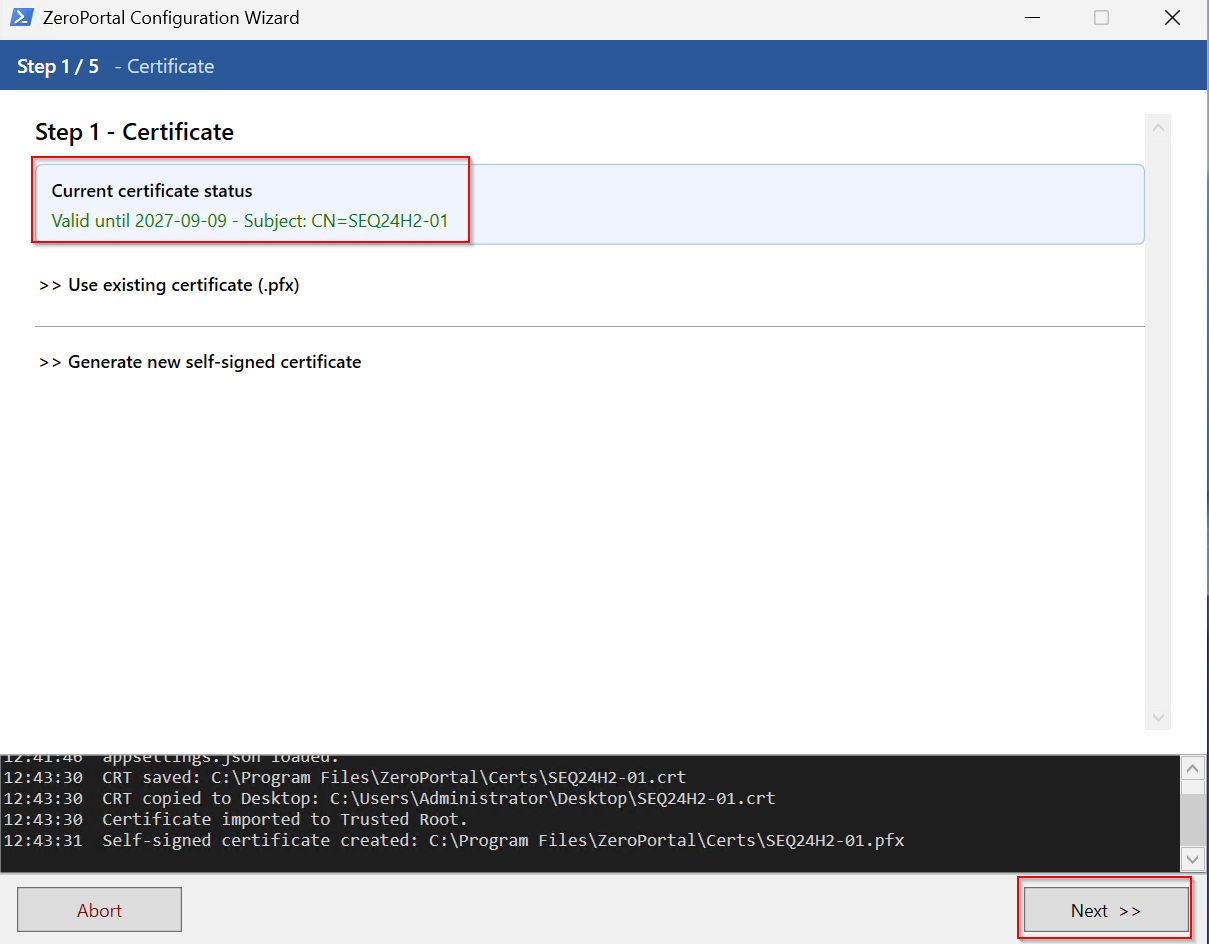
The status line then shows validity and subject. Continue with Next.
For production use later, import a certificate from your own PKI that all clients trust.
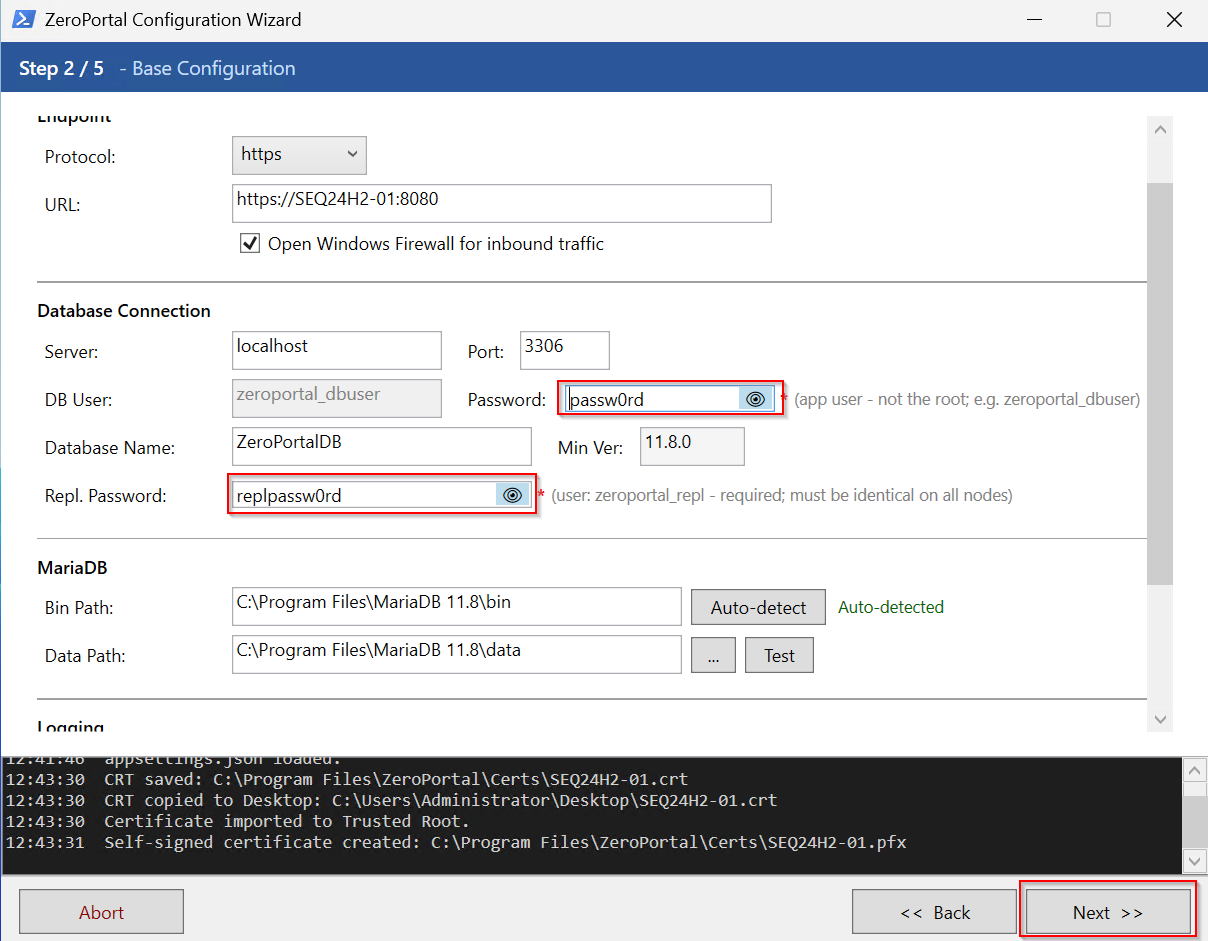
Step 2: Basic configuration
- Endpoint: the URL the portal is reachable under. On a domain, use the full name,
e.g.
https://zeroportal.firma.local:8080. The port is free to choose. Open Windows Firewall for inbound traffic stays checked. - Database Connection: server
localhost, port3306. The password belongs to the application userzeroportal_dbuser, which the wizard creates — a new, freely chosen password, not the root password. The replication password is required; it is only needed for a cluster and must then be the same on every node. - MariaDB: the wizard detects the program and data paths itself.
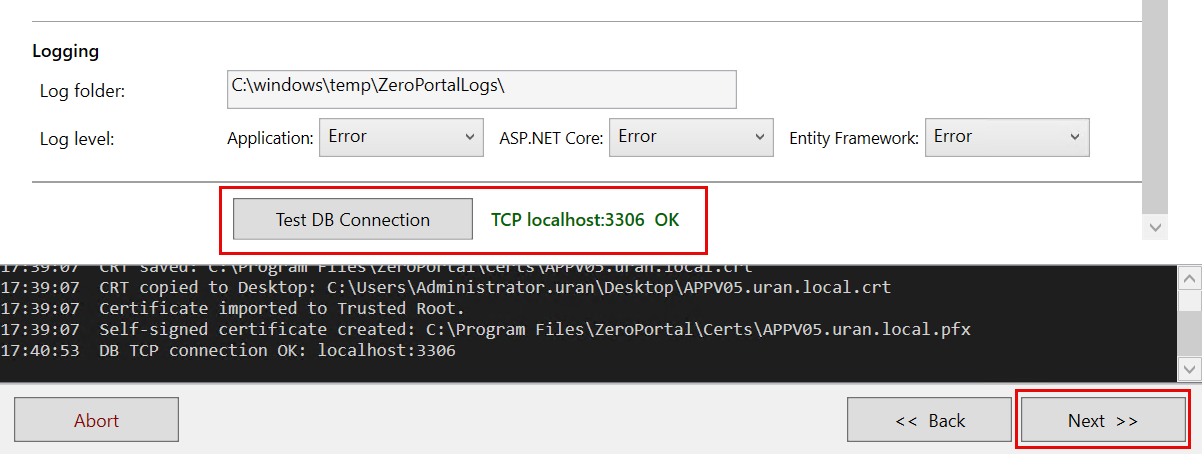
Further down, leave the log folder and log levels at their defaults (folder
C:\ProgramData\NickIT\ZPServer\Logs) and run Test DB Connection. Do not continue
until you see OK.
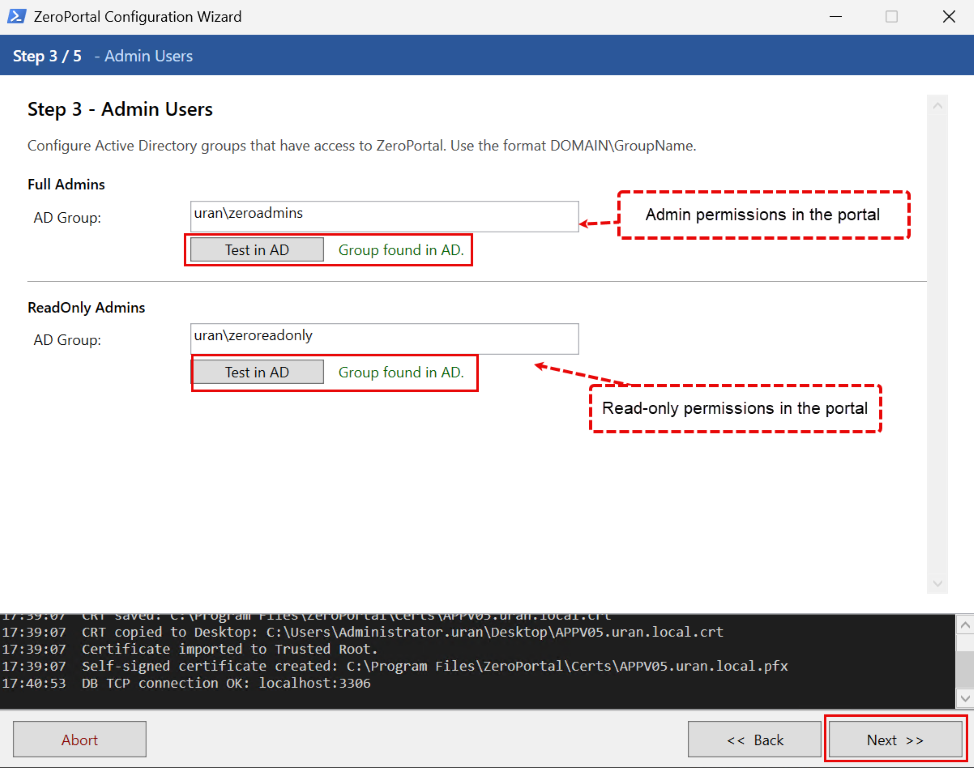
Step 3: Administrators
Enter the AD group of the full administrators in the form DOMAIN\Group and check it
with Test in AD. Optionally add a second group with read-only access. Both groups
always apply, even if every permission is later removed inside the portal.
Server without a domain. Local groups such as
BUILTIN\Administratorsdo not work here; the portal resolves groups through Active Directory. Leave both fields blank and set up the emergency account after the wizard finishes: on a machine with the ZeroPortal PowerShell module, runNew-ZPRootPasswordHash, enter the password, and put the resulting hash intoC:\Program Files\ZeroPortal\appsettings.json:
"RootUser": { "UserName": "root", "PasswordHash": "ZPH1:..." }Then restart the
ZeroPortalservice and sign in athttps://<server>:8080/Account/Login. Every sign-in with this account is logged; set up internal accounts in the portal for day-to-day work.
Step 4: Create the database
This is where ZDBInstallUpdate.exe runs: it creates the database, the application and
replication users, and imports the schema. Enter root and the password from the
MariaDB installation once for this. These credentials are not stored. Then click
Create / Update Database.
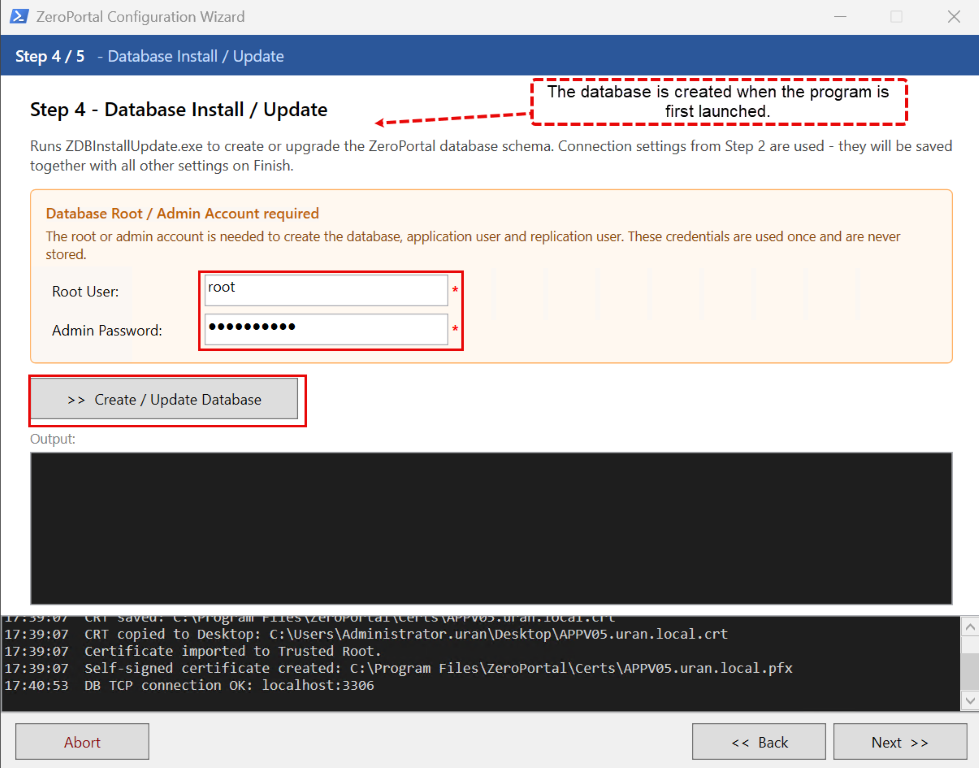
The output window ends with Database migration completed successfully and Database is up to date. Only then click Next.
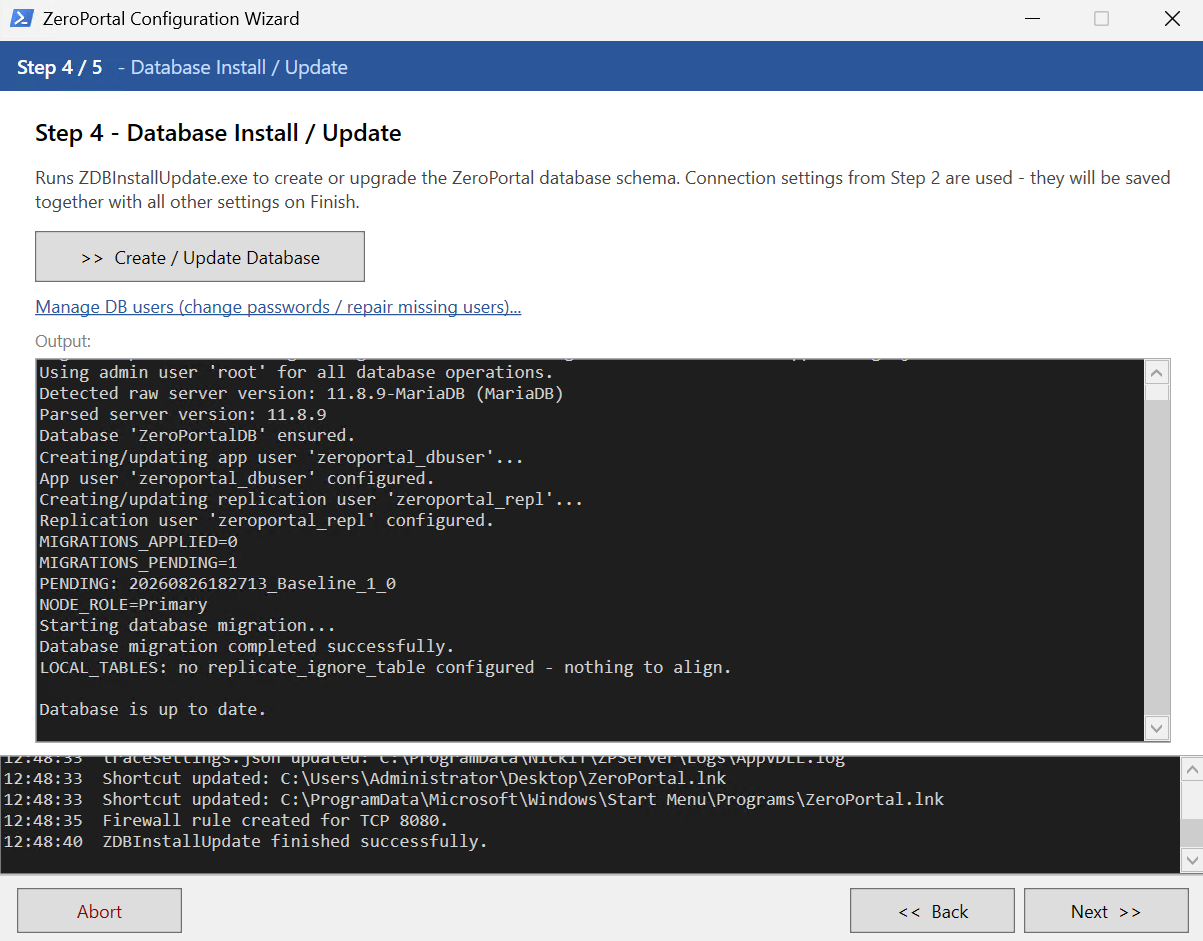
After a portal update, repeat this step with the same root credentials so schema changes get applied.
Step 5: Start the service
Save & Restart Service writes appsettings.json, registers the ZeroPortal
service, creates the firewall rule for the portal port, and adds shortcuts to the
desktop and Start menu. The status changes to Running. Ignore SSL certificate
errors for inter-node API calls only matters for clusters with self-signed
certificates and can stay checked. Open in Browser opens the portal, Close exits
the wizard.
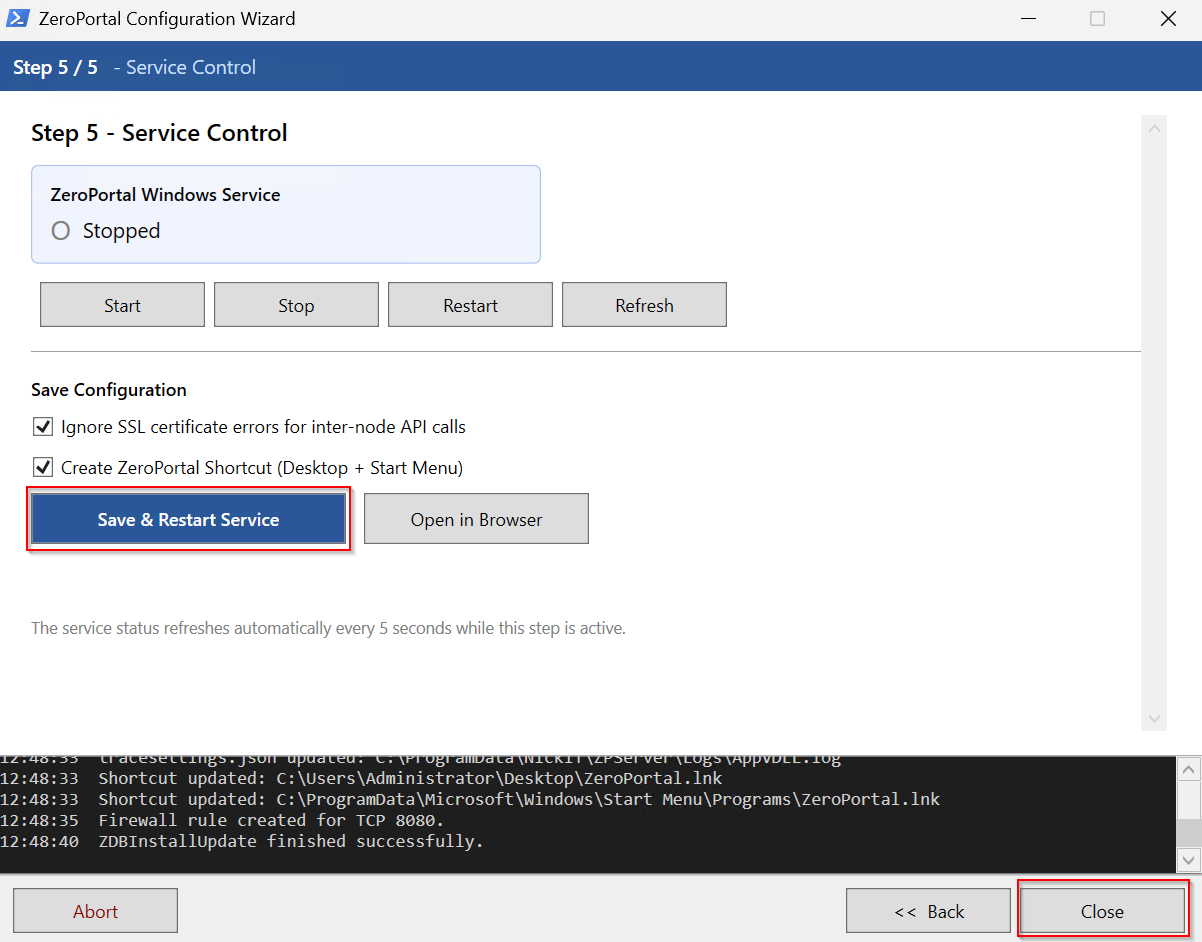
All settings now live in C:\Program Files\ZeroPortal\appsettings.json. Before every
change the wizard makes, it creates a backup of the file. If you edit the file by hand,
restart the service afterwards.
5. Logging in through the browser
On the server itself, https://<server>:8080 opens the portal without a password
prompt. From another machine, the browser must be allowed to silently send the Windows
account — the portal URL needs to be in the Local Intranet zone.
For a first test on a single machine: open Internet Options, tab Security, zone Local Intranet, then Sites.
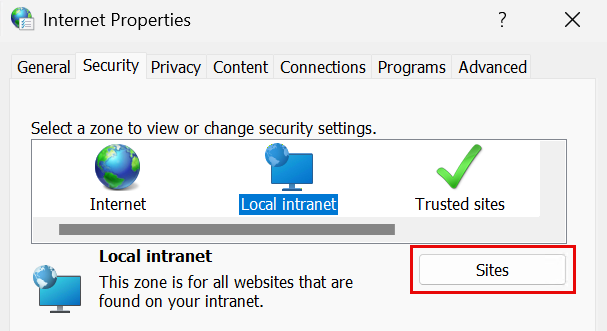
Add the portal URL via Advanced, close the dialogs, restart the browser. The setting applies to Edge, Chrome, and Internet Explorer alike.
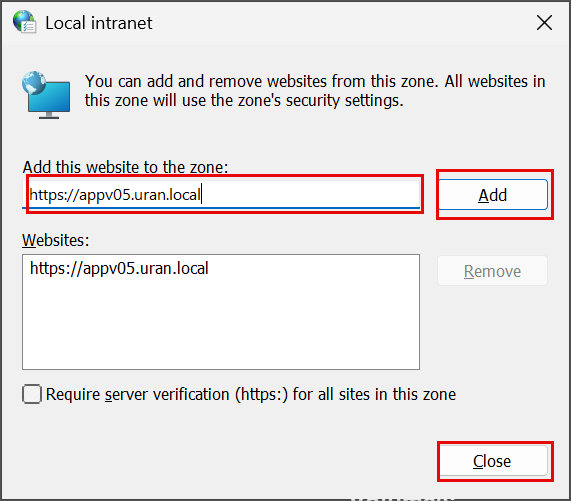
A group policy can do this for every machine: User Configuration → Administrative Templates → Windows Components → Internet Explorer → Internet Control Panel → Security Page → Site to Zone Assignment List, portal URL with value 1.
If the portal is reached under the server's own name, there is nothing further to do for
Kerberos. Only for a separate name (alias) does an SPN belong on the computer account:
setspn -S HTTP/zeroportal.firma.local SERVERNAME$. A login prompt despite correct
group membership almost always means the intranet zone is missing.
6. Check and continue
The portal shows the signed-in account and the authentication method in the header. If a member of the administrator group is signed in, every menu item is visible.
If the administrator group was created, or your account added to it, only a moment ago, sign
out of Windows and back in once. Windows writes group memberships into the logon token at
sign-in only; until then the portal answers "no access". On the portal server itself only
this re-logon helps, klist purge does not.
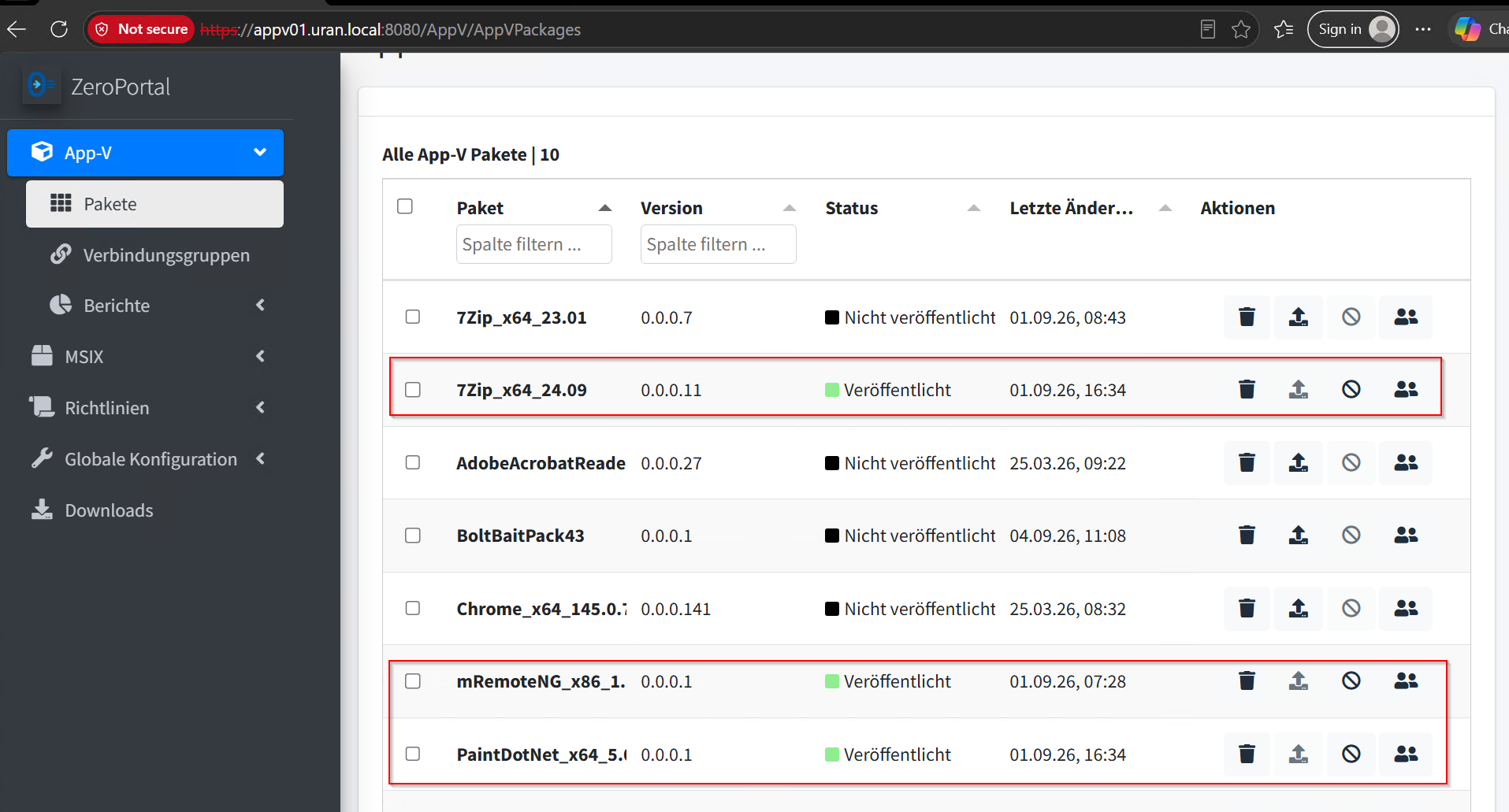
The server is now set up. Next steps:
- Create a package share and register it as a repository in the portal (Administration Handbook, chapters 3 and 4).
- Connect the first client and deploy applications (Quick Admin Guide).
- Grant permissions to further administrators and packagers (Administration Handbook, chapter 5).
- Add a second node for high availability, if you want one (Administration Handbook, chapter 11).
Where things live:
| What | Where |
|---|---|
| Program and configuration | C:\Program Files\ZeroPortal, containing appsettings.json and ZeroPortalConfigTool.ps1 |
| Certificates | C:\Program Files\ZeroPortal\Certs |
| Logs | C:\ProgramData\NickIT\ZPServer\Logs |
| Database | service MariaDB, database ZeroPortalDB, users zeroportal_dbuser and zeroportal_repl |