
Distributing MSIX packages
This document describes how you bring MSIX packages to workstations, terminal servers and virtual desktops with ZeroPortal: from import through dependencies and entitlements to delivery as App Attach. It assumes a running portal server and installed agents (Administration Handbook). Who may do what in the portal is in Users, permissions, licences and logs; the device side is in Client agent: operations, rollout and group policies.
1. What is this?
MSIX is the current package format of Windows (AppX is the older name of the same
technology). An MSIX package is signed, installs without admin rights into an isolated area,
and can be removed cleanly. Many packages require a framework, a runtime component such
as Microsoft.VCLibs that several applications share.
The package file sits on a share, the package repository. On import, the portal only reads the metadata and manages who should get the package (entitlements) and whether it is delivered (state Published or Unpublished). The agent on the device fetches the catalogue during a sync, installs or registers the packages, and removes them again when they are unpublished.
What is App Attach? There are two forms of delivery. With the classic MSIX installation, the agent copies the package from the repository and installs it. With App Attach, the package sits on the share as a virtual disk (VHDX or CIM) and is only mounted; this is meant for terminal servers and virtual desktops. The portal creates these disks itself from the imported package; assignment to devices is done by policy.
The basic rule: a device gets a package only if both apply: the package is published, and there is an entitlement that matches the user or the device.
2. What is this good for?
- Standard software on workstations. Entitle an AD group of computers; the agent installs machine-wide.
- Line-of-business applications that follow the person. Entitle an AD group of users; the package follows the person to every device and disappears when they leave the group.
- Terminal servers and VDI. The session hosts mount a shared App Attach image from the share; an update is a new image.
- Store applications without the Store. A Store package downloaded with
winget downloadis distributed through the portal together with its licence file. - Version changes without rework. A new version takes over the entitlements of the old one on import; frameworks come and go with the applications that need them.
App Attach is not suitable for notebooks that work on the road: the image has to be reachable when the application starts. There, the classic installation remains the choice.
3. How do I use this?
3.1 Prerequisites
- Turn on MSIX sync in the agent. After installation it is off. The way for all devices is
the group policy Enable MSIX sync from the agent's ADMX template
(
C:\Program Files\NickIT\ZeroPortalAgent\admx). On a test device,Enable-ZPAgentSync -Msixlocally is enough;Get-ZPAgentSyncshows the state. - Signing certificate on the clients. Windows only installs packages whose certificate the device trusts. For your own packages, distribute the certificate by GPO into Trusted People or Trusted Root Certification Authorities. Devices without internet access also need the intermediate certificates of the chain, see Known issues.
- Package repository. The share is entered under Global Configuration → Configuration, section Package Repositories, and is readable by computer accounts and users. For branch offices, the agent setting Package source root override points to a local share or a DFS path; if a package is missing there, the agent uses the central source.
3.2 Step 1: Import
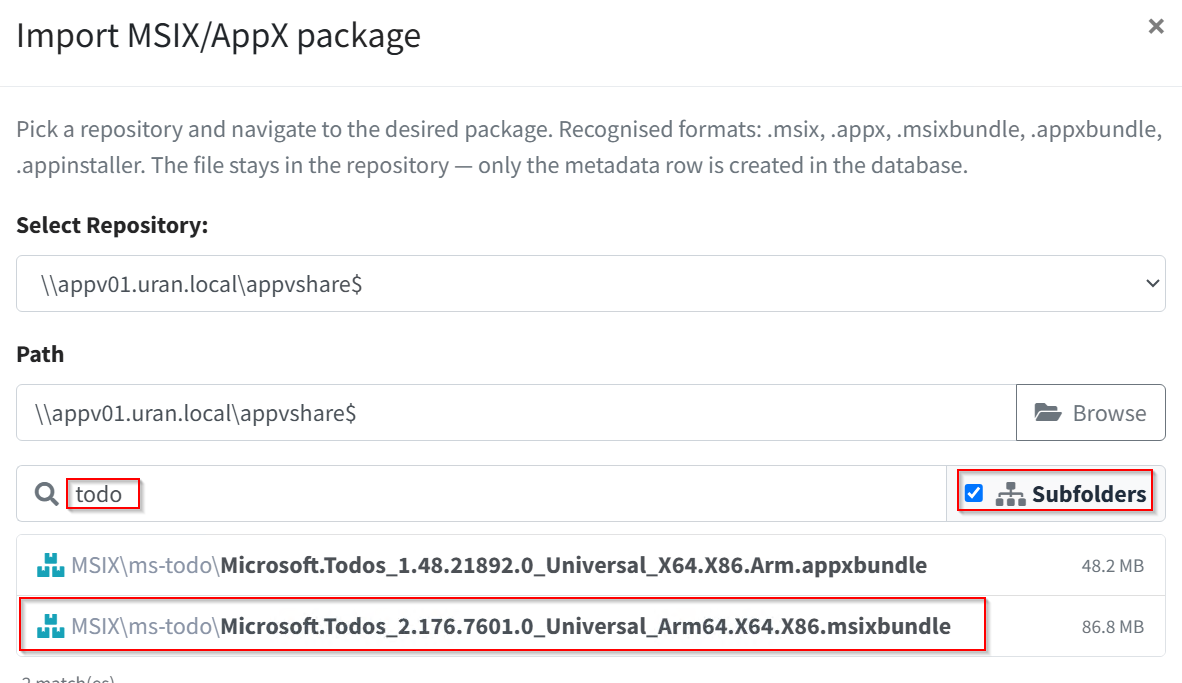
Under MSIX → Packages, click Add package, choose the repository, navigate to the file
with Subfolders ticked, and choose Import. Recognised are .msix, .appx,
.msixbundle, .appxbundle and .appinstaller. The file stays on the share. One subfolder
per application keeps the repository tidy.
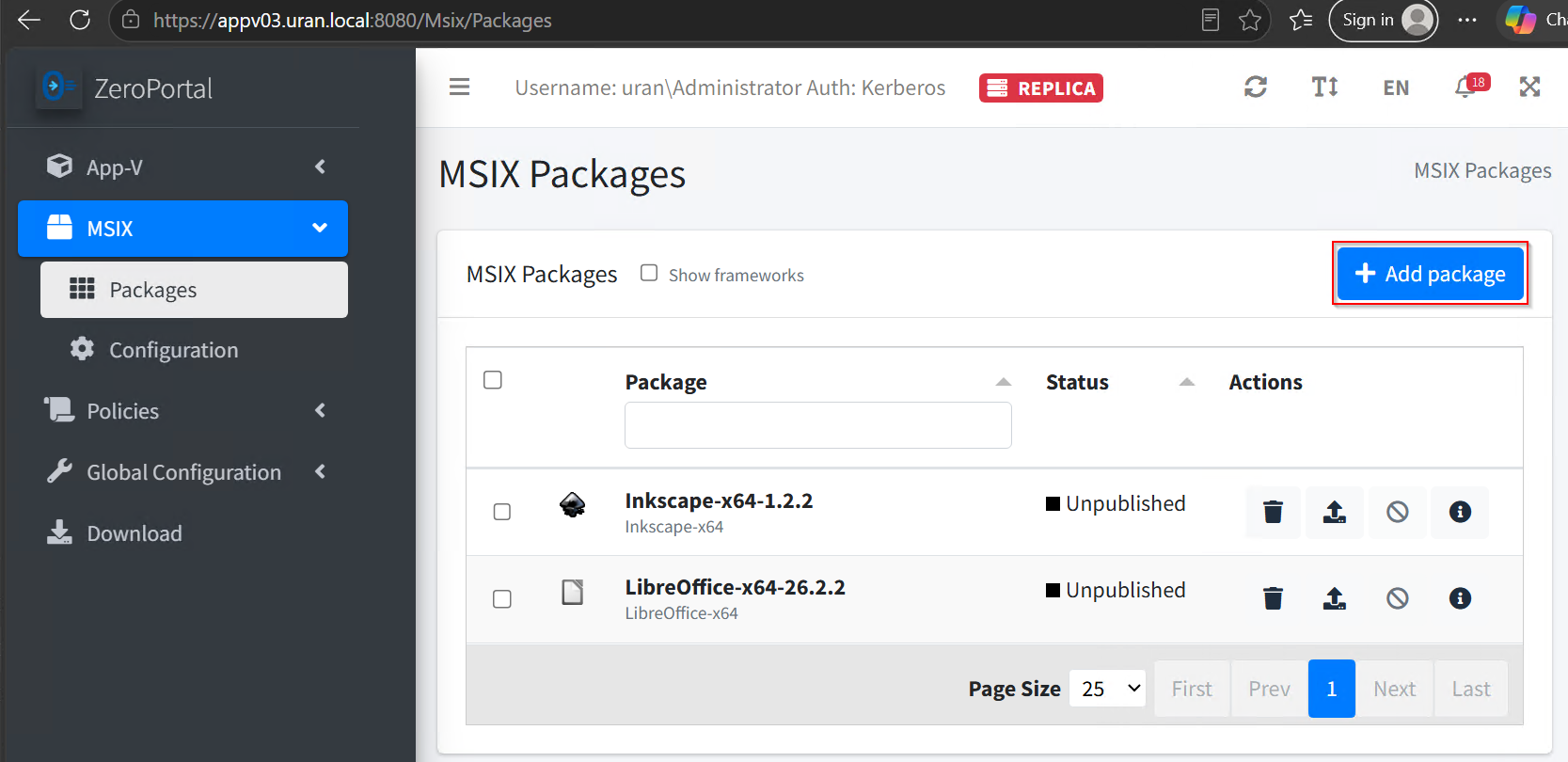
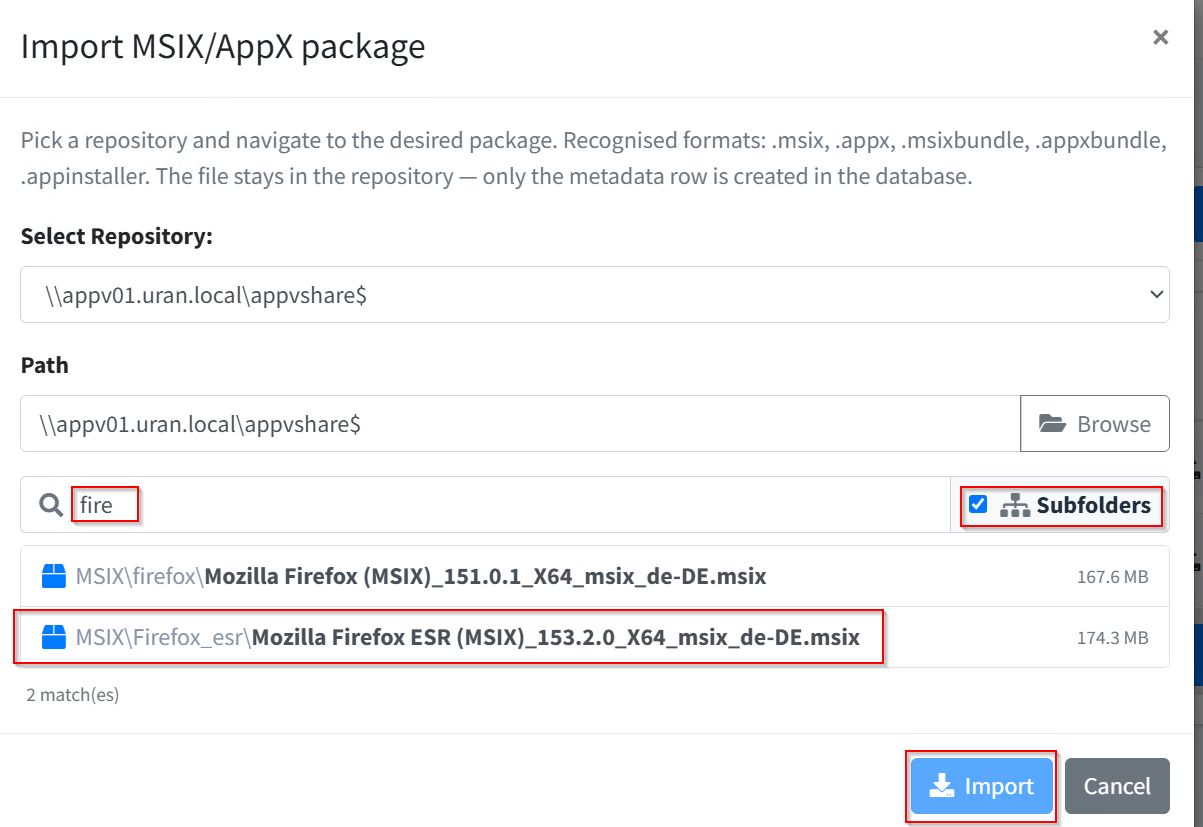
A freshly imported package is Unpublished. The list hides frameworks; the Show frameworks checkbox brings them in.
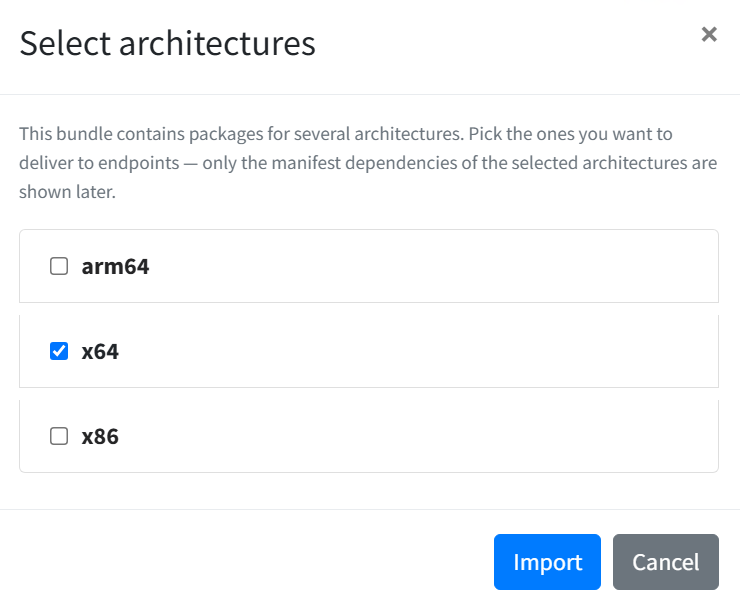
Bundles. A bundle contains the same application for several processor types (x64, x86, ARM64). In the Select architectures dialog, choose the variants you want to distribute, x64 for normal Windows PCs. The choice also determines which dependencies the portal shows afterwards.
3.3 Step 2: Check
Package type. The header of the package page has a drop-down with the type from the manifest: Application, Framework, Modification, Optional or Resource. The delivery rules follow it. If a runtime component declares itself as Application, switch it to Framework here; otherwise it appears to the user as a program that does nothing.
Signature. The Identity & Signature card shows under Certificate & timestamp until when the signing certificate is valid and whether the signature carries a timestamp (chapter 4.6). An unsigned package is marked Unsigned; devices refuse to install it.
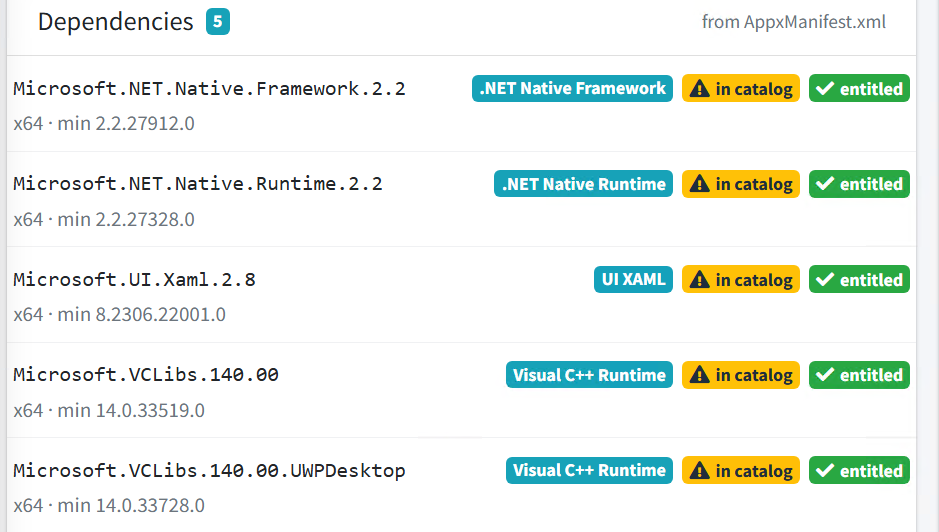
Dependencies. The Dependencies card lists the frameworks from the manifest:
| Display | Meaning |
|---|---|
| missing · import … | Not in the catalogue. The button first searches next to the package on the share; if it finds nothing, the repository browser Import framework opens. |
| in catalog | Present. Yellow: present but unpublished, so clients do not get it. |
| entitled | Every entitlement of the main package is also set on the framework. |
| n main-package entitlement(s) missing | The framework does not have the same recipients as the main package; see step 3. |
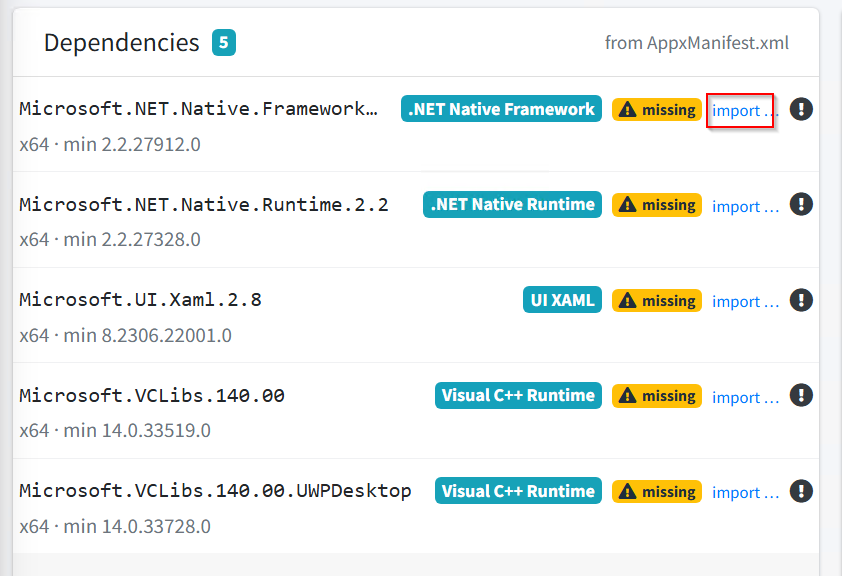
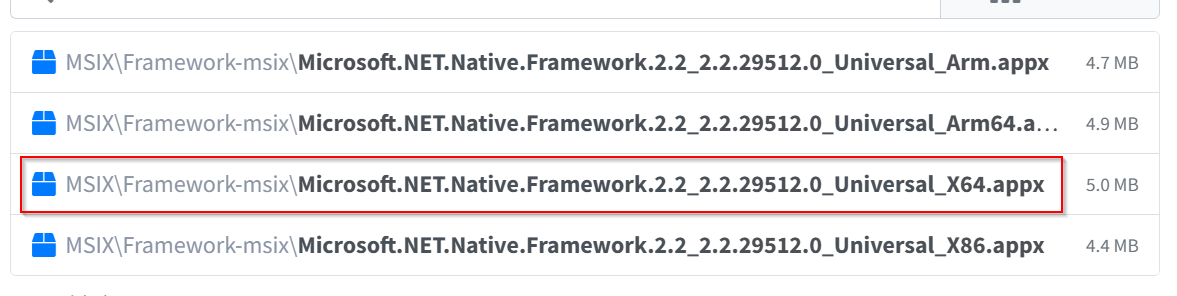
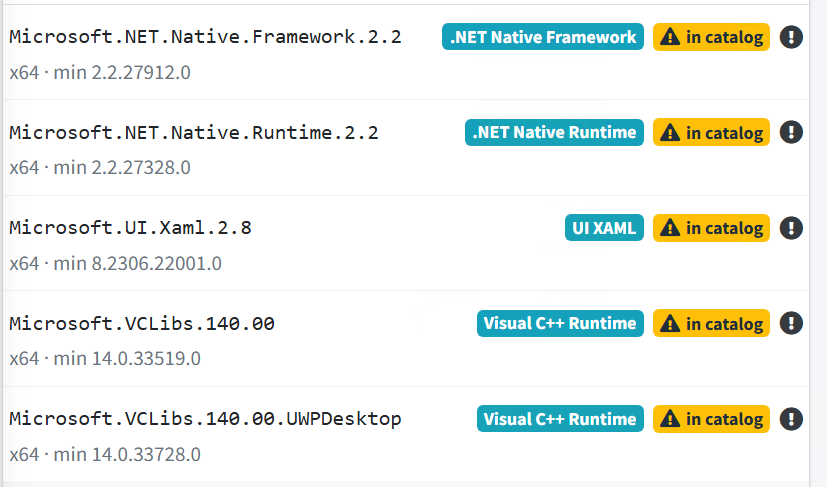
A missing or unentitled framework is the most common reason why an installation on the device fails while everything in the portal looks right.
3.4 Step 3: Entitle
On the AD entitlements card, click Add. The dialog searches Active Directory (groups and users, two characters are enough), Entra ID, internal portal accounts, portal groups, and devices and users from agent enrollment (API clients).
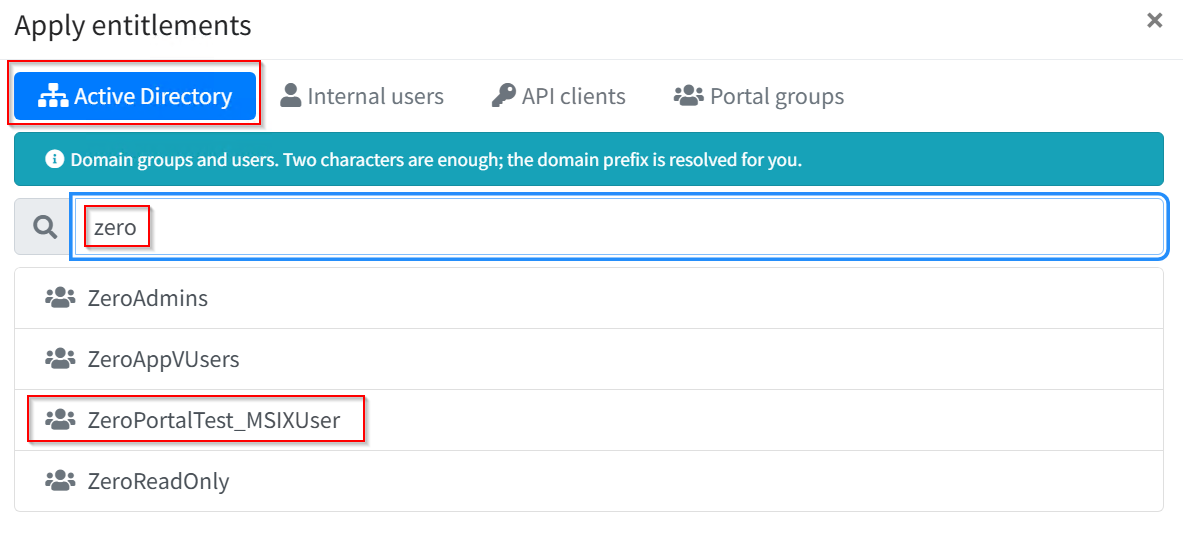
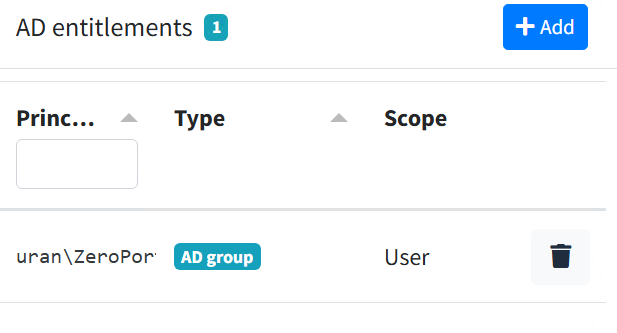
Device or user, the most important difference:
| Entitlement for … | What happens |
|---|---|
| a device (computer group, enrolled device) | The agent service installs the package machine-wide with the computer account. For standard software and for packages with a Store licence. |
| a user (user group, account) | The user sync registers the package in the person's profile with their ticket, on every device they sign in to. If it already exists machine-wide, it is only registered. |
Use AD groups; then you control distribution through group membership. Every grant and every revocation is recorded in the Audit trail.
Carrying entitlements over to frameworks. The Apply entitlements button below the dependency list copies the entitlements of the main package to all frameworks in the catalogue (additively) and publishes them at the same time. The portal reports frameworks that are not in the catalogue.
3.5 Step 4: Publish
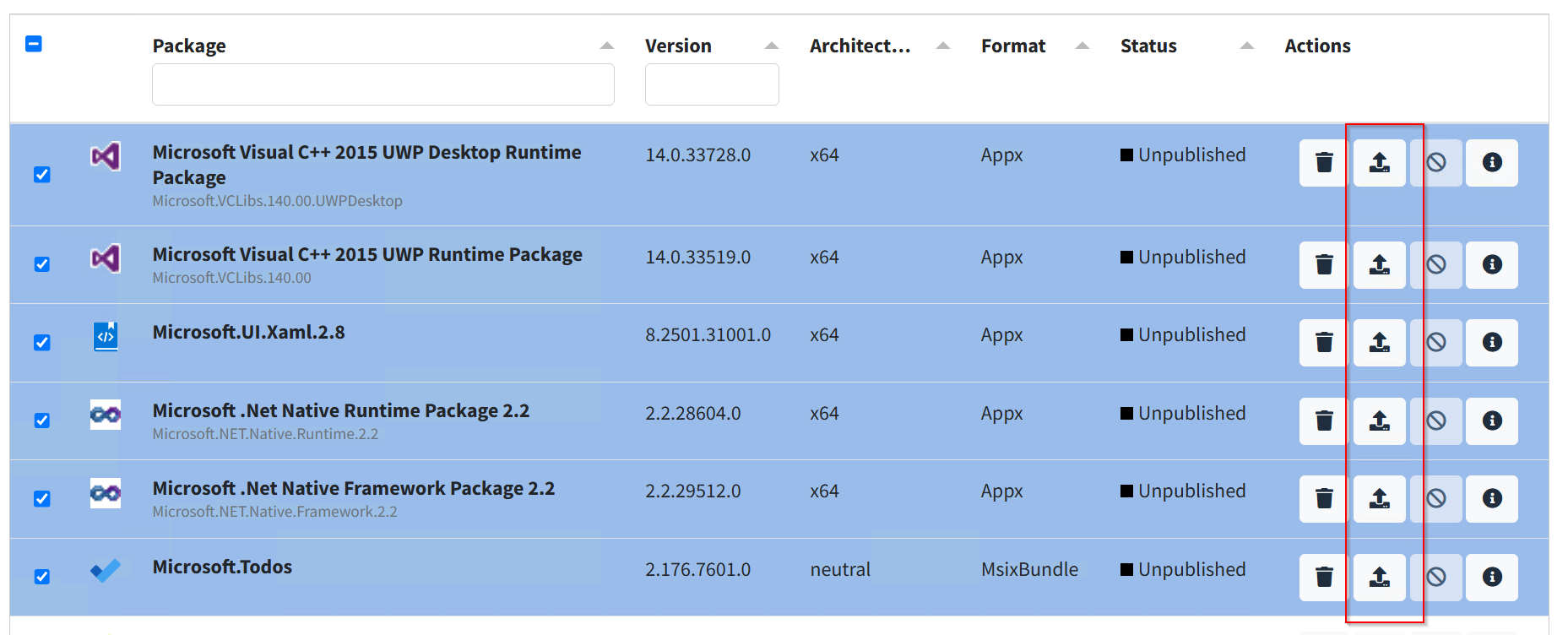
At the top of the package page, choose Publish; Unpublish takes the package out of delivery again. In the package list, the same works per row or for several selected packages at once. When a bundle is published, the portal also publishes the frameworks it finds in the catalogue.

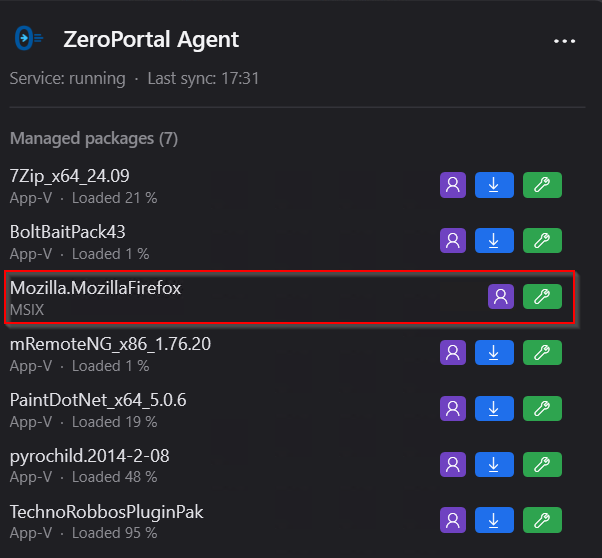
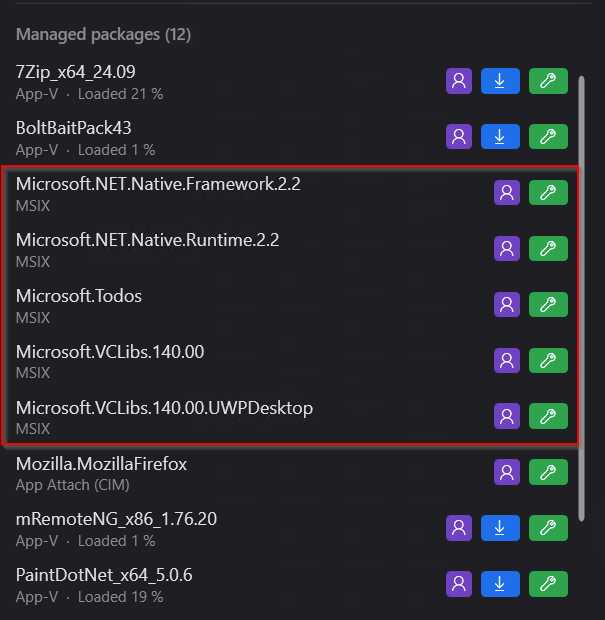
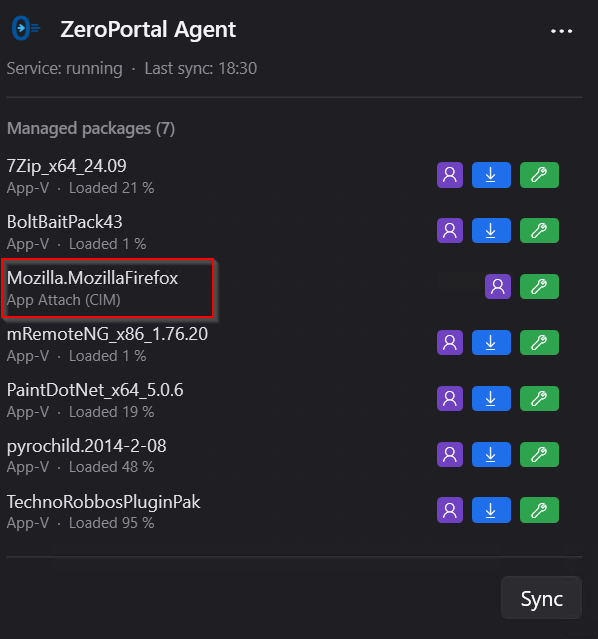
After the next sync the package appears in the agent's tray window; frameworks can be shown there.
3.6 Step 5 (optional): App Attach
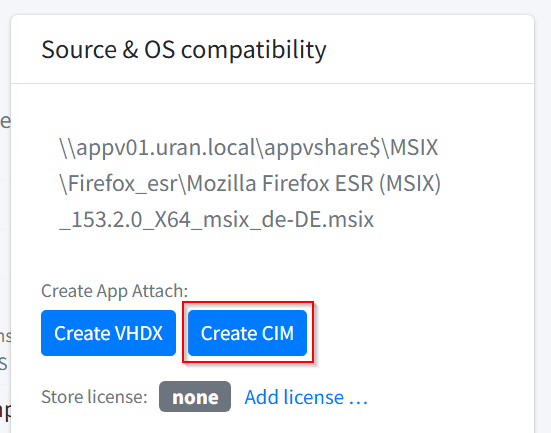
Creating an image. On the package page, on the Source & OS compatibility card, click
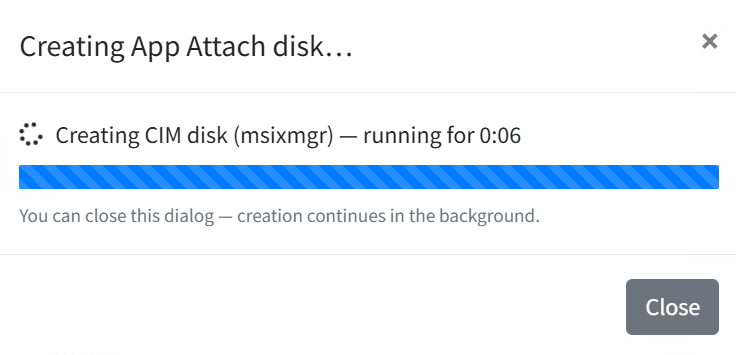
VHDX or CIM under Create App Attach:. Creation runs in the background; the button
shows the progress and afterwards offers to delete the image again. The image sits next to
the package on the share in a folder of its own per package version
(AppAttach\<PackageFullName>\vhdx or …\cim); the path is shown under App Attach disk:.
Both formats can exist side by side. Creation is not possible for packages with a Store licence.
Several .msix files may share a directory: every package gets its own image folder, and
Delete CIM removes only that one. Images created before 1.0.38 still sit in the shared
AppAttach\cim folder; the package page shows a warning note for them. They keep being
delivered and may stay as they are. Migrating is optional: when convenient, delete and create
again, and the image sits in the package folder (clients re-deliver the package from the new
image at their next sync). Deleting such a CIM leaves the companion files (objectid_*,
region_*) in place while other CIMs remain in the old folder.
If images should be created automatically, turn on Generate disk(s) automatically after import under MSIX → Configuration and choose the format (chapter 6).
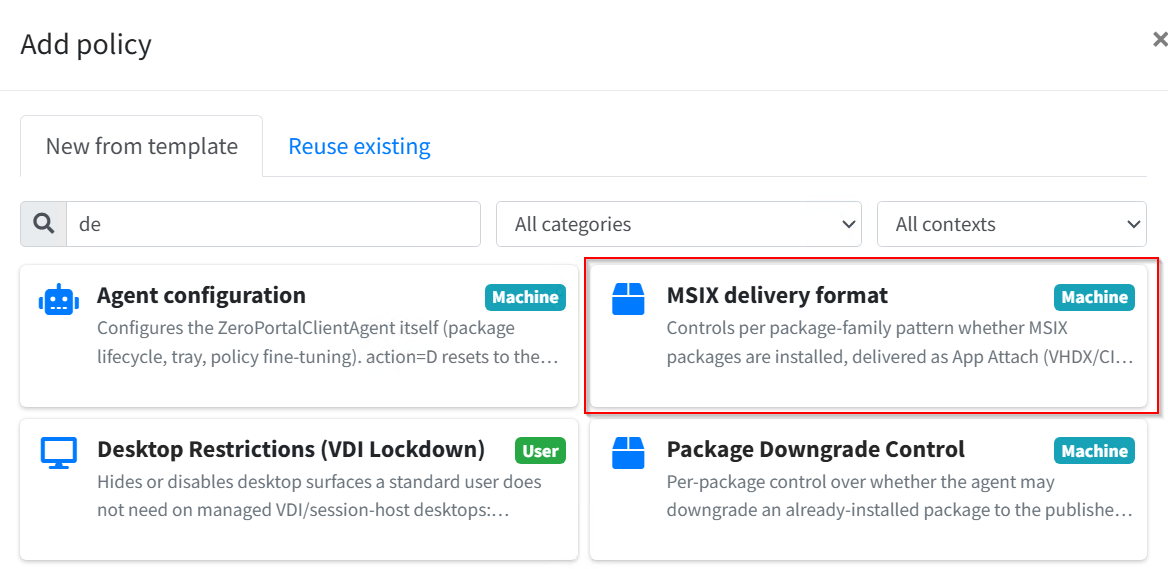
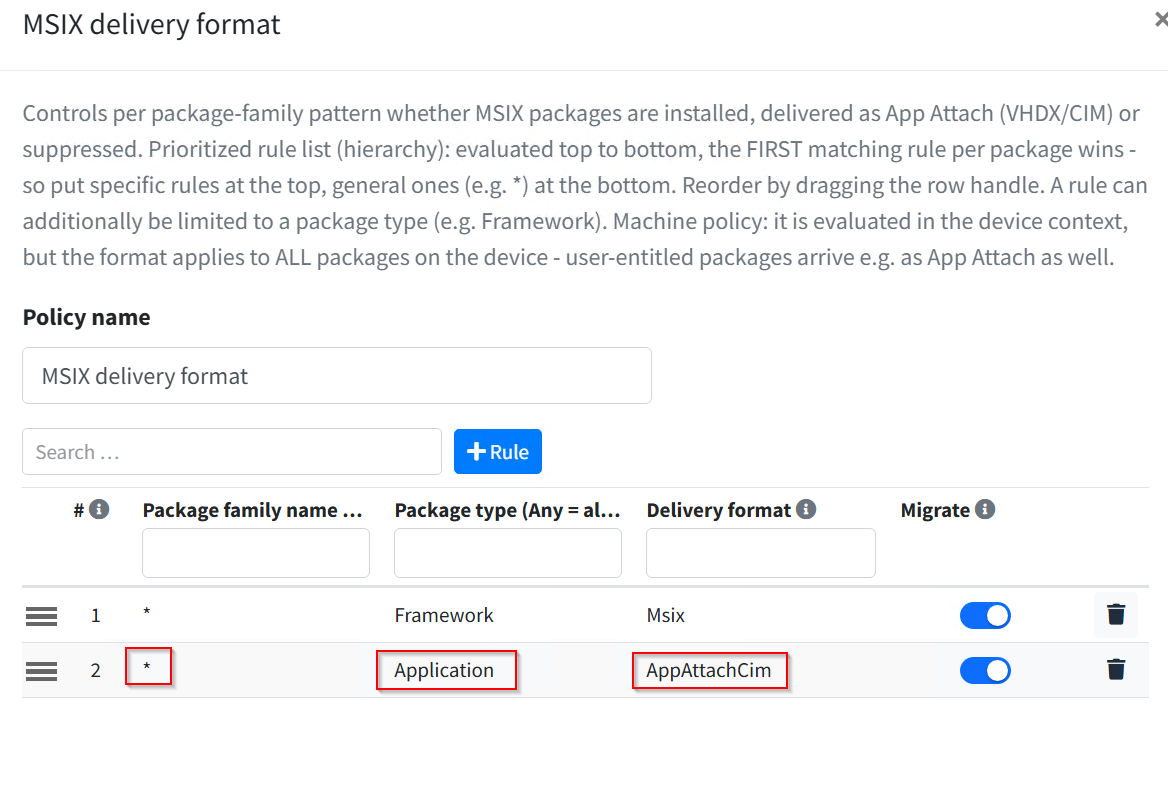
Assigning devices. Which device gets a package as App Attach is set by the MSIX delivery
format policy. Under Policies, create a policy set for the session hosts (scope, for
example, their OU), add the MSIX delivery format policy, and enter rules: a pattern on the
package family name (* allowed), optionally a package type, and the format. A new policy
already contains the rule * / Framework → MSIX (locally installed), because frameworks
always come the classic way. Below it, a rule * → App Attach (CIM) is enough for a
terminal server. Policy sets are described in Policies and templates.
3.7 Packages with a Store licence
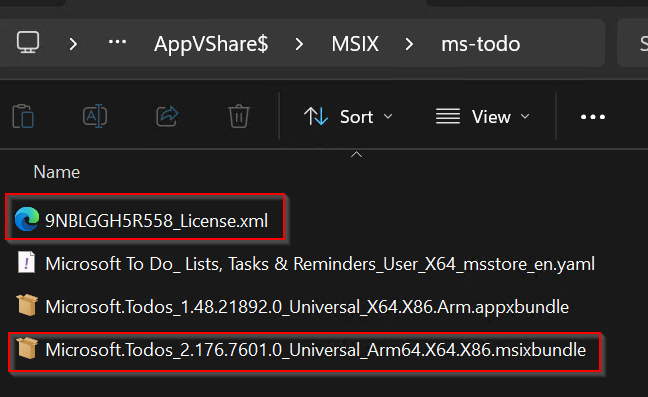
A package exported from the Microsoft Store (winget download) comes with a licence file
<ProductId>_License.xml. Put it next to the bundle on the share and attach it on the package
page under Store license: with Add license …. Two rules apply to such packages:
- Always entitle a computer group. The licence is installed machine-wide; with a pure user entitlement the agent skips the package and logs it.
- Always classic installation. App Attach has no licence step; if a delivery rule requests App Attach, the agent delivers MSIX anyway.
3.8 Distributing a new version
Import the new version as in step 1. It takes over the entitlements and dependency settings of the previous one (default, chapter 4.2) and stays Unpublished at first so that you can check it. As soon as you publish it, devices switch at the next sync. Unpublish the old version by hand afterwards, or let the portal do it with the option When activating a version, automatically deactivate other active versions of the same family.
4. Rules: when does what apply
4.1 When the agent syncs
The agent service syncs the device context at start and then every 60 minutes
(MSIX/SyncIntervalMinutes), with up to 10 minutes of random offset
(Agent/SyncJitterMinutes). The user context is synced at every sign-in, at unlock, and at
the same interval. To trigger it right away: Sync-ZPAgentPublishingServer or the tray icon.
An entitlement through an AD group only takes effect for users with a new Kerberos ticket, that is, after signing out and back in, unless the agent setting Purge the user's Kerberos tickets before a user sync is active.
4.2 Version changes
- Takeover on import (on by default): the new version of a package family receives the entitlements, dependency links and transfer setting of the previously newest version and stays unpublished.
- Automatic unpublishing on publish (on by default): as soon as you publish a version, the portal unpublishes all other published versions of the same family. Switch it off if you want to run two versions side by side while the new one is being checked.
- The family results from the package name and the publisher certificate. A package signed with a different certificate is a different family: no takeover, no automatic unpublishing, and on the device a second installation next to the first.
4.3 Unpublishing and removal
If you unpublish a package or remove the entitlement, the agent removes it at the next sync
(MSIX/AutoUninstallOnUnpublish, on by default); MSIX/GlobalRemovalPolicy sets the timing:
Immediate (default), WhenIdle, OnReboot or Disabled. If the application is running,
the agent defers removal (MSIX/DeferRemovalWhileInUse, on by default); after 24 hours at the
latest (MSIX/RemovalIdleTimeoutHours) it removes the package even while the application
runs. Frameworks stay without an error as long as another package needs them, even one from
the Store (event 2507 in the device context, 2516 in the user context).
4.4 Distributing an older version (downgrade)
Delivering an older version over a newer one present on the device is blocked by default: the agent skips the package (event 3501 device context, 3510 user context), and the newer version stays. The reason: the newer version may come from a source the portal does not know (Store, Windows Update); without the block, the agent would replace it at every sync.
If you want a downgrade, for example after a faulty update, allow it per package family with
the Package Downgrade Control policy (patterns like Contoso.*; the first matching rule
from the top wins). A new downgrade policy starts with the rule * → Deny downgrade; put
your allow rule above it, otherwise it is never reached. The agent setting
MSIX/AllowDowngrade allows downgrades for all packages on the device and is meant for
test devices only; the policy takes precedence.
A permitted downgrade first removes the newer version and then installs the older one; frameworks are never downgraded. Test first: the older application may require older frameworks that the device no longer has.
4.5 Delivery format: MSIX or App Attach
Without an MSIX delivery format policy, all packages are installed the classic way. With it, the first matching rule from the top applies per package:
| Format | Effect |
|---|---|
| MSIX (locally installed) | Classic installation from the repository |
| App Attach (VHDX), App Attach (CIM) | Mount the image from the share instead of copying |
| Do not deliver (Deny) | The package is not delivered to these devices, even if it is entitled |
It is a machine policy: the format applies to all packages on the device, including
user-entitled ones. If there is no image in the requested format or the share is unreachable,
the agent delivers the classic way (event 3620); if the package already runs from an image,
it stays that way (event 3533). Packages with a Store licence always come the classic way
(event 3504). For a format switch the agent closes a running application
(MSIX/TerminateAppsForFormatSwitch, on by default); when off, it waits until the application
is closed. A locally newer version is never replaced by an older one in the other format
(chapter 4.4).
VHDX or CIM? VHDX has the broadest compatibility with Windows versions and is the choice when in doubt. CIM is compact but cannot handle write access to the virtual disk. A package that writes into its own installation directory therefore fails from a CIM image; that is a property of the format, not a ZeroPortal error. Many packages rebuilt with the Package Support Framework still work, because the redirections send write access elsewhere. If a program does not start from CIM or fails when saving, create a VHDX instead and switch the rule to App Attach (VHDX).
The portal sizes a VHDX from the package size and the configured headroom; if that is not enough, it repeats the creation with a larger disk. A CIM grows by itself.
4.6 Signatures and expiry
Whether a certificate is trusted is not checked by the portal but by Windows on the device during installation. So only import packages from sources you trust.
Expired certificate, what then? What matters is the timestamp of the signature. If the signature carries a timestamp, Windows checks whether the certificate was valid at the time of signing and keeps installing the package after expiry. Without a timestamp, the package can no longer be installed after expiry and must be re-signed and imported again. Packages already installed keep running either way. The setting Signature warning threshold (days before cert expiry) (default 14) sets from when the package page marks the expiry date in red.
4.7 Self-installation by users
Windows allows standard users to install signed MSIX packages by double-click, bypassing the portal; ZeroPortal cannot prevent that. The Windows policy BlockNonAdminUserInstall does not help: it also blocks the agent's user sync (access denied, 0x80070005); only machine-wide entitled packages would still arrive. Use a publisher-based AppLocker or WDAC rule instead: block foreign publishers, allow the certificates of your own packages. The agent then keeps delivering.
5. Operations and troubleshooting
Where to look
| Place | What you find there |
|---|---|
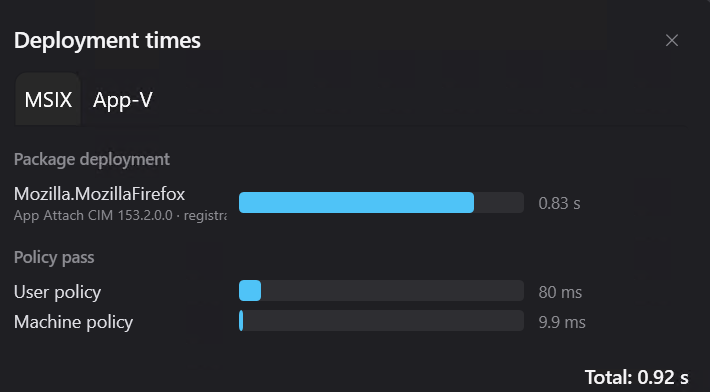
| Agent tray window | Managed packages with state, Deployment times per package, notification windows with errors (a click opens the log folder) |
C:\ProgramData\NickIT\ZeroPortalAgent\Logs\agent-<date>.log |
Service: device context, App Attach, removal |
C:\ProgramData\NickIT\ZeroPortalAgent\Logs\usersync-<user>-<date>.log |
User sync of the respective person |
| Package page in the portal | Dependencies, signature, errors of image creation (failed — try again) |
C:\ProgramData\NickIT\ZPServer\Logs\ZeroPortalLogs.log |
Server-side errors during import and image creation |
| Global Configuration → Audit trail | Who granted or revoked which entitlement, and when |
On the device (PowerShell, agent module):
Get-ZPAgentSync                  # Is MSIX sync turned on?
Get-ZPAgentStatus                # Service, server, last sync
Sync-ZPAgentPublishingServer     # Trigger a sync right now
Get-ZPAgentPackage               # Packages managed by the agent
Get-ZPAgentMountedPackage        # Mounted App Attach images
Get-ZPAgentConfiguration         # All switches with value and source
Important events in the agent log
| ID | Meaning |
|---|---|
| 2504 | Removal deferred (removal timing is WhenIdle or OnReboot) |
| 2506 | Removal deferred because the application is still running |
| 2507 / 2516 | Framework still needed and stays installed (device / user) |
| 2538 | Newer version already present, requirement counts as met |
| 3410 | Deployment took longer than the warning threshold; names the likely cause |
| 3501 / 3510 | Downgrade blocked, package skipped (device / user) |
| 3504 | Package with Store licence delivered the classic way despite an App Attach rule |
| 3514 | Package with Store licence only user-entitled, skipped |
| 3532 | Mounted image lost after a restart, being mounted again |
| 3533 | App Attach delivery kept, image currently unreachable |
| 3620 | App Attach requested but no reachable image; falling back to MSIX |
| 4501 / 4502 | Deployment / removal in the device context failed, with error code |
| 4512 | Removal in the user context failed |
| 4530 | Installing a Store licence failed |
| 4531 | Mounting an App Attach image failed, falling back to MSIX |
Troubleshooting
| Symptom | Cause | Fix |
|---|---|---|
| Package appears on no device | MSIX sync off in the agent (default after installation) | Get-ZPAgentSync; check the group policy Enable MSIX sync |
| Package does not appear for the user | Package Unpublished or no matching entitlement | Check the state and the AD entitlements card; with AD groups sign out and back in |
| Installation fails, error 0x80073CF3 | Framework missing from the catalogue, unpublished or not entitled | Check the Dependencies card, Apply entitlements |
| Error 0x800B0109, or installation has recently started failing | Signing certificate not trusted on the device, or expired without a timestamp | Distribute the certificate by GPO (chapter 3.1), or re-sign the package and import it again (chapter 4.6) |
| Error 0x80073D06 or event 3501/3510 | Newer version on the device, downgrade blocked | Publish a newer version or allow the downgrade by policy (chapter 4.4) |
| Error 0x80070005 in the user sync | Windows policy BlockNonAdminUserInstall active | Lift the policy or entitle the package machine-wide (chapter 4.7) |
| Package with Store licence does not arrive, event 3514 | Only users entitled | Entitle a computer group (chapter 3.7) |
| Program does not start from App Attach or fails when saving | CIM image, package writes into its installation directory | Create a VHDX and set the rule to App Attach (VHDX) (chapter 4.5) |
| Package arrives as MSIX instead of App Attach, event 3620 | No image in the rule's format, or share not readable from the device | Create the image; test the share as the computer account; event 4531 names path and error code |
| Image creation fails | Portal service account without write access to AppAttach\<PackageFullName>\vhdx or …\cim, or encrypted Store bundle |
Check permissions; read the server log |
| Deployment takes minutes, event 3410 | Signature check without internet runs into timeouts | Known issues |
| Device gets packages twice or from two portals | Several publishing servers entered and Agent/ServerFailover off |
Switch on = one cluster, first reachable server counts; off = catalogues of all servers are merged |
6. Appendix: technical reference
Settings under MSIX → Configuration
The values apply to all servers of a cluster; Reset settings restores the defaults. The settings you usually adjust:
| Setting | Default | Meaning |
|---|---|---|
| Folder schema for generated disks | [PackageFolder]\AppAttach |
Target folder of the images; [PackageFolder] is the folder of the package file, <PackageFullName>\vhdx or \cim is appended (one folder per package version). The portal's service account needs write access there. |
| Generate disk(s) automatically after import | off | Never for frameworks and packages with a Store licence |
| Format for automatic generation | VHDX | VHDX, CIM or VHDX + CIM |
| VHDX size headroom (MB) | 64 | Extra space in the size calculation; VHDX only |
| When activating a version, automatically deactivate other active versions of the same family | on | Applies on publish (chapter 4.2) |
Agent settings for MSIX
By group policy (ADMX), by the ZeroPortal policy Agent configuration, or locally with
Set-ZPAgentConfiguration -<switch> <value>. Order of precedence: group policy before
ZeroPortal policy before local value. Get-ZPAgentConfiguration shows all switches with value
and source; the switches from chapter 4 are named there with their defaults.
| Switch | Default | Meaning |
|---|---|---|
MSIX/MSIXSyncEnabled |
off | MSIX and App Attach sync active (ADMX: Enable MSIX sync) |
MSIX/MSIXPackageRoot |
empty | Site-local share or DFS instead of the central source (ADMX: Package source root override) |
MSIX/AllowDowngrade |
off | Allow downgrades across the board; the policy takes precedence |
MSIX/SelfHealEnabled |
on | Reinstall missing packages during sync |
MSIX/SeedLicensedUserPackages |
off | Prepare packages with a Store licence machine-wide even with a pure user entitlement |
Agent/ServerFailover |
on | One server per sync (cluster); off = merge the catalogues of all servers |
Agent/SlowDeployWarnSeconds |
30 | Threshold for event 3410 |
PowerShell module of the portal
The cmdlets of the ZeroPortal module cover the same path as the web interface:
Get-MsixZeroPortalPackage               # Query the catalogue (-Name, -Family, -Id, -EnabledOnly)
Import-MsixZeroPortalPackage            # Import a package (-PackagePath, for bundles -Architecture)
Set-MsixZeroPortalPackage               # Publish or unpublish (-Id, -Enabled $true/$false)
Remove-MsixZeroPortalPackage            # Delete a catalogue entry
Get-MsixZeroPortalPackageEntitlement    # Show a package's entitlements
Grant-MsixZeroPortalPackage             # Entitle an AD group (-Id, -GroupName, -AutoDependencies)
Copy-MsixZeroPortalPackageEntitlement   # Carry entitlements over to the frameworks
Revoke-MsixZeroPortalPackage            # Revoke an entitlement

Import-MsixZeroPortalPackage -PackagePath '\\files01\Packages\MSIX\Contoso.App.msixbundle' -Architecture x64
Grant-MsixZeroPortalPackage -Id 42 -GroupName 'APP-Contoso-Users' -AutoDependencies
Set-MsixZeroPortalPackage -Id 42 -Enabled $true