
ZeroPortal – Administration Handbook
This handbook walks compactly through installing, setting up, and running ZeroPortal. It is written for administrators who set up and look after the portal. Where a topic needs more depth, the text points to the relevant detailed document (see chapter 14).
Contents
- What ZeroPortal does
- System requirements and sizing
- Installing the server
- Initial setup
- Permissions
- Licensing
- Connecting clients
- Distributing App-V packages
- Distributing MSIX packages
- Policies
- High availability
- Operations: backup, logs, audit, updates
- Emergencies and troubleshooting
- Reference
1. What ZeroPortal does
ZeroPortal delivers applications as App-V and MSIX packages to Windows devices and enforces policies on them. The packages sit on a network share; the portal manages who gets which package. Every device runs the ZeroPortal agent, which checks in with the portal regularly, fetches the assignments, and installs, updates, or removes packages.
The building blocks:
- Portal (server): web interface, database, package catalogue, permissions, policies. Runs as a Windows service with its own web server.
- MariaDB: the portal's database. Replicated for high availability.
- Package share: SMB share with the App-V and MSIX packages. Clients load packages straight from there, not through the portal.
- Agent: Windows service plus tray icon on every device. Syncs in the device and in the user context.
- PowerShell module: practically every administrative task can also be done by cmdlet: packages, assignments, groups and permissions, policies, licences, backup.
Sign-in to the portal uses the Windows account (Kerberos). Permissions are granted to AD groups.
2. System requirements and sizing
What you need
| Component | Requirement |
|---|---|
| Portal server | Windows Server (64-bit), domain member. The installer brings .NET along. |
| Database | MariaDB 11.8 or 12.3 (both LTS), local on the portal server or on its own machine; tested with 11.8.6 and 12.3.3. Older series (11.4, 10.x) are not suitable: setup only warns, the database tool and the portal start refuse. MySQL is not supported. In a cluster, the same version on every node. |
| Package share | SMB share, readable by computer accounts (App-V, MSIX) and users |
| Clients | Windows 10/11 or Windows Server (RDS) with the App-V client and/or MSIX support |
| Network | Clients reach the portal over HTTPS and the package share over SMB |
| Certificate | Server certificate for the portal URL that clients trust |
Which MariaDB series? Always an LTS series (11.8 or 12.3): several years of bug fixes only. Rolling series (12.0, 12.1, 12.2, 13.x) are maintained for one year only and force a series change with a new program folder every three months (chapter 12). Maintenance periods: mariadb.org/about (Maintenance Policy).
Sizing the portal server
A single portal node is enough for very large environments:
| Endpoints | Nodes | vCPU | RAM | Note |
|---|---|---|---|---|
| up to 10,000 | 1 | 2 | 8 GB | Even 10,000 requests within 10 minutes are no problem |
| up to 50,000 | 1 | 6 | 16 GB | 50,000 sign-ins within 15 minutes are handled |
| up to 100,000 | 1 | 8 | 16 GB | 100,000 sign-ins within 15 minutes are handled |
A second node mainly serves availability; with random server selection it also spreads the sync load (chapter 11). Running MariaDB on the same server is common; from 50,000 devices, an SSD for the data directory is advisable. A sync transfers about 5 KB (10,000 syncs in 10 minutes: under 1 Mbit/s); package data travels by SMB from the share to the client, so the share has to handle the package sizes and simultaneous first installs. The agent checks in every 60 minutes plus 0 to 10 minutes random, and 30 seconds after system start.
Antivirus
On the portal server, exclude the installation directory, the MariaDB data directory, and the package share from real-time scanning. With Microsoft Defender:
Add-MpPreference -ExclusionPath "C:\Program Files\ZeroPortal"
Add-MpPreference -ExclusionPath "C:\Program Files\MariaDB*\data"
Add-MpPreference -ExclusionPath "D:\Packages"          # package share
Add-MpPreference -ExclusionProcess "C:\Program Files\ZeroPortal\zeroPortal.exe"
Add-MpPreference -ExclusionProcess "mysqld.exe"
The process exclusion for the portal service matters most: without it, the virus scanner used 7 to 15 percent CPU permanently in our measurements.
Clients with App-V: the App-V 5 client needs no exclusions; the time at first launch is spent streaming the package, not in the scanner. Exclusions only in two cases:
| Environment | Rule |
|---|---|
| Session hosts and VDI with shared content store | Exactly one path: C:\ProgramData\App-V (with a relocated cache, the value of Get-AppvClientConfiguration -Name PackageInstallationRoot), by GPO under Microsoft Defender Antivirus → Exclusions → Path Exclusions or locally with Add-MpPreference -ExclusionPath 'C:\ProgramData\App-V'; with tamper protection only by GPO or Intune. Keep software inventory (e.g. ConfigMgr) out with an empty skpswi.dat in the cache root. |
| A single application | Only after measuring, if an application creates executable files itself at launch (Paint.NET with plugins): its cache folder, e.g. C:\Users\*\AppData\Local\paint.net\AppCache. |
Do not exclude: C:\Users\*\AppData\Local\Microsoft\AppV, …\Roaming\Microsoft\AppV, the
package share from the client, or AppVClient.exe and AppVStreamingUX.exe. For MSIX and
App Attach there is no separate recommendation.
3. Installing the server
Order
- Install MariaDB: series 11.8 or 12.3, standard installation with UTF-8 (utf8mb4),
note the root password. Leave the program and data directory at the installer's
defaults (
C:\Program Files\MariaDB 11.8withdatanext tobin); otherwise the replication wizard's my.ini functions won't find the file. The service must be running before the portal is set up. - Install the portal MSI (
ZeroPortal-<Version>.msi) intoC:\Program Files\ZeroPortal. Setup creates the service and launches the configuration tool at the end (later:C:\Program Files\ZeroPortal\ZeroPortalConfigTool.ps1as administrator). - Create the package share and set permissions (see below).
- Open the portal and run the initial setup (chapter 4).
The configuration tool
Five steps:
- Certificate: pick a certificate from your own PKI or import a PFX. Import to Trusted Root only trusts a self-issued certificate on the server, not on the clients.
- Base Configuration: host name and port of the built-in web server (e.g.
https://zeroportal.firma.local:8080, no IIS needed), the checkbox Open Windows Firewall for inbound traffic, the database connection, and the replication password for cluster operation. - Admin Users: AD group of the full administrators (e.g.
Company\ZeroAdmins), optionally a group with read access. Without the first group you cannot get in. - Database Install / Update: creates the database, portal users, and schema.
- Service Control: Save & Restart Service.
The settings land in C:\Program Files\ZeroPortal\appsettings.json. This file is
node-specific and belongs in every backup (chapter 12).
Setting up the package share
An SMB share, e.g. \\fileserver\Packages, with subfolders for App-V and MSIX. The share
itself lets everyone through; NTFS grants the actual rights. Two groups of your own in
Active Directory keep this maintainable when servers or packagers are added later:
| Group | Members |
|---|---|
ZeroPortal-Server |
the computer accounts of every portal node |
ZeroPortal-Packagers |
the people who put packages there |
The portal runs as a system service and reaches the share with the server's computer account, which is why the first group contains computers, not users. It needs write access because it puts App Attach images next to the package. Clients read as a computer account (machine-wide installation) and as the signed-in user.
Share permissions (Properties → Sharing → Advanced Sharing → Permissions):
| Account | Permission |
|---|---|
| Everyone | Read |
ZeroPortal-Server |
Change |
| Administrators | Full Control |
NTFS permissions (Properties → Security → Advanced), each applied to This folder, subfolders and files:
| Account | Permission |
|---|---|
| SYSTEM | Full control |
| Administrators | Full control |
ZeroPortal-Server |
Modify |
ZeroPortal-Packagers (optional) |
Modify |
| Domain Computers | Read & execute |
| Domain Users | Read & execute |
The script Support\PowerShell\New-ZeroPortalPackageShare.ps1 from the installation creates
share and NTFS permissions exactly like this (-ServerGroup, optional -PackagerGroup;
-HideFromBrowsing hides the catalogue from users) and can be re-run at any time.
- Create a folder on the file server, such as
D:\Packages, with the subfoldersAppVandMSIX. - Turn off inheritance: Security → Advanced → Disable inheritance → Convert inherited permissions into explicit permissions, then remove the Users entry. Otherwise every user may create files in the package folder, which is the default right on a data drive.
- NTFS permissions: add them as in the table.
-
Share it: Properties → Sharing → Advanced Sharing, give it a share name and set the share permission as in the table. A
$at the end hides the share on the network; common, but not required.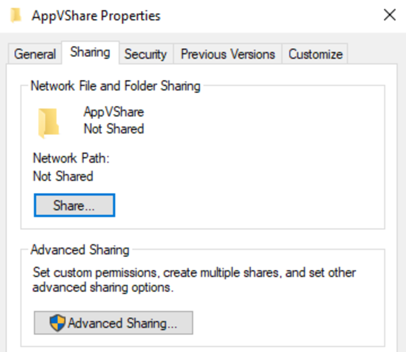
-
Turn off offline files: in the same dialog, under Caching, clear Allow caching of share, or in PowerShell
Set-SmbShare -Name Packages -CachingMode None. Otherwise clients may read packages from a stale local cache instead of from the share. -
Restart the portal nodes after their computer accounts have been added to
ZeroPortal-Server; until then their Kerberos ticket does not carry the group.
The portal then reads the share as a repository (chapter 4). Packages are provided by copying them onto the share; there is no upload through the browser.
Firewall and ports
Every connection goes outbound from the client or node to the target; ZeroPortal needs no connection from outside in.
| From → to | Port | For | Required |
|---|---|---|---|
| Clients and browsers → portal | Portal port, TCP (HTTPS), set in the configuration tool, e.g. 8080 | Agent sync, web interface, App-V reporting | yes |
| Clients → package share | TCP 445 (SMB) | Load package data, mount App Attach images | yes |
| Portal → package share | TCP 445 (SMB) | Read packages, create App Attach images | yes |
| Portal → domain controller | TCP/UDP 389 (LDAP) or the configured port, plus TCP/UDP 88 (Kerberos) and 53 (DNS) | Sign-in, resolving users and groups | yes, on a domain |
| Portal → MariaDB | TCP 3306 | Database; on the same server, traffic stays local | yes |
| Replica → Primary | Portal port (HTTPS) and TCP 3306 | Forwarded writes, heartbeat, database replication | cluster only |
| Primary → Replica | Portal port (HTTPS) | Reachability check, wizard, maintenance mode | cluster only |
| Portal → mail server | TCP 587, or the configured port | Email notifications | only with email |
| Clients → internet | TCP 80 and 443 | Revocation check of the package signature; without access see Known issues | no |
The agent opens no inbound port; clients need no firewall rule. The configuration tool
creates the rule ZeroPortal Inbound <Port>, the replication wizard the rule for port 3306
on both nodes, both only in the Windows Firewall. With a third-party or hardware
firewall, the portal port and, in a cluster, port 3306 must be opened there by hand.
Sign-in without a password prompt (SSO)
For browsers to sign in silently with the Windows account, the portal URL has to be in the intranet zone. Usually you don't need an SPN:
- GPO: User Configuration → Administrative Templates → Windows Components → Internet Explorer → Internet Control Panel → Security Page → Site to Zone Assignment List, portal FQDN with value 1. Also applies to Edge and Chrome.
- SPN: the portal service runs as Local System; the SPN for the server's own name already
exists on the computer account. Only if the portal should also be reachable under an
alias does that alias go onto the computer account:
setspn -S HTTP/zeroportal.firma.local SERVERNAME$. We do not recommend a load balancer with a shared name in front of several nodes; the agent fails over by itself (Known issues).
A login window despite correct permissions almost always means a missing intranet zone (chapter 13).
Admin group: a dedicated group, not Domain Admins. Configure a dedicated group as full administrators (e.g. ZeroPortal Admins), not Domain Admins or Administrators. Reason: a browser on the portal server itself signs in through the NTLM loopback with the UAC-filtered session token, in which the privileged groups are "deny only". With Domain Admins as the admin group the module pages appear, but the pages under Permissions and the AD search do not. The portal then shows a banner with the command for an elevated Edge. A dedicated group stays active in a filtered token; from any other machine the token is complete anyway.
4. Initial setup
After first opening the portal with an account from the administrators group:
- Repositories (Global Configuration → Configuration, section Package Repositories): enter the package share as an App-V or MSIX repository.
- Email (section E-Mail Notifications): SMTP server, sender, recipients. This is how the portal reports expiring certificates, licence problems, an unreachable database, and a switched-off audit trail.
- Permissions (Global Configuration → Permissions): create further groups (chapter 5). At least one group with read rights for the service desk makes sense.
- Licence (Global Configuration → Licensing): 30 licences are included; beyond that, upload the licence file and pick the counting mode (chapter 6).
- Audit (section Audit trail): leave it on, set the retention.
- Agent download (Download): the agent MSI matching the server version is here. Chapter 7 describes the rollout.
5. Permissions
Basic principle
The portal consists of eight areas: App-V (packages and connection groups), MSIX (packages and App Attach), Policies, Reporting (App-V reporting), Download (agent MSI), Configuration (portal-wide settings, repositories, email, backup), High Availability, and Node Settings. For each area you give a group a level:
| Level | What the person may do |
|---|---|
| None | The area does not appear in the menu and is blocked via the address bar too |
| Read | View everything, change nothing |
| Administrate | View, create, edit, delete |
Full administrators may do everything. Three things are reserved for them and cannot be delegated: granting permissions (even level Administrate in the Configuration area allows no further rights), backup and recovery (chapter 12), and managing users, devices, licences, and the audit trail (portal groups, internal accounts, rollout tokens, licensing, audit).
Level Administrate in the Configuration area is still far-reaching: it allows changing portal-wide settings, including repositories and email delivery. Give it only to people you trust with running the portal.
Creating portal groups
Rights hang on portal groups. The portal creates two of them itself from the groups in
appsettings.json, that is, from the Admin Users step of the configuration tool:
| Portal group | Rights | Members | Behaviour |
|---|---|---|---|
| Portal administrators | Administrate, all areas | AD group from AccessGroups:FullAdmins, plus a configured RootUser account |
Checked at every service start; anything missing is recreated |
| Portal read-only | Read, all areas | AD group from AccessGroups:ReadOnlyAdmins |
Once at first start, only if the group is configured; if deleted, it stays deleted |
You create further portal groups yourself. A portal group contains AD groups (recommended), individual AD accounts, or devices and users without AD (chapter 7). Under Global Configuration → Portal groups, create the group and add members, then under Permissions pick the level per area. For example:
| Portal group | Rights | Members |
|---|---|---|
| Package management | MSIX: Administrate · App-V: Administrate · Reporting: Read | Company\SW-Packagers |
| Service desk | MSIX: Read · App-V: Read · Reporting: Read | Company\Helpdesk |
Package assignments
Who receives a package is set on the package itself (chapters 8 and 9); the permissions in this chapter only govern who may manage it in the portal. MSIX accepts AD groups and individual AD accounts, portal groups, internal accounts, and devices and users from enrollment; App-V accepts AD groups only.
Don't lock yourself out
Two emergency exits live in appsettings.json: the group from the configuration tool
(AccessGroups.FullAdmins) and optionally a single account (RootUser). Both always
apply, even if every right has been removed in the portal. Restart the service after a
change.
6. Licensing
ZeroPortal counts, it does not block. If the licensed number is exceeded, delivery carries on; the portal reports the overage by email and on the licensing page.
- What counts is what the ZeroPortal agent delivers (MSIX, App Attach, and App-V too): devices or users that checked in through the agent within the last 90 days. Anyone getting App-V solely through the Microsoft App-V client needs no licence and is not counted, whatever the number of users and devices; App-V reporting is free of charge as well.
- The mode on the licensing page sets whether users or devices are counted; it is not detected automatically. For terminal servers (RDS, AVD), per user is recommended; in per device mode the portal counts the devices people connect from, not the session host.
- 30 licences are included and never expire. Beyond that, you upload licence files signed by the vendor. Several files add up as long as they match the mode; files for the other mode appear grey, expired ones red, and neither counts.
- The licence is booked on the side during a sync and never blocks it. If the portal is unreachable, the agent removes nothing; everything installed keeps running.
Product support through the ticket system (4-hour response time on working days during German business hours) is included from 20,000 licensed users. Below that, and for the 30 free licences, support is billed as a package or by time; this also covers help with App-V and MSIX packages.
7. Connecting clients
The recommended path
The agent is installed without parameters; every setting comes by group policy. After installation, App-V, MSIX, and policies are off in the agent until group policy turns them on.
- Copy the ADMX template into the central store
(
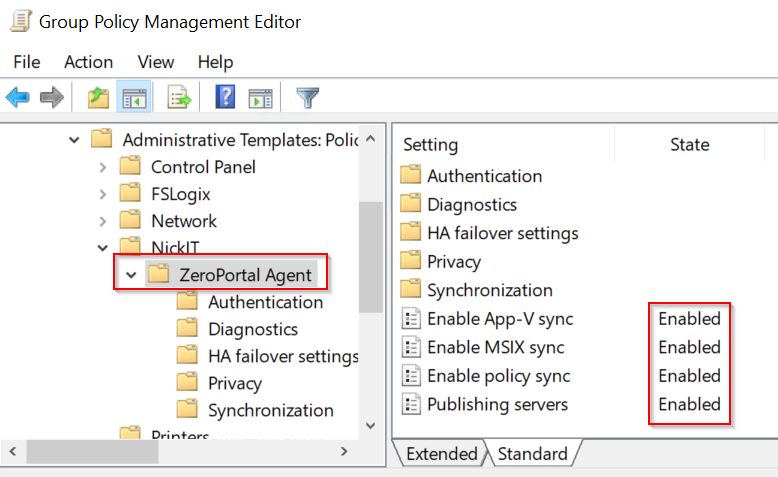
\\<domain>\SYSVOL\<domain>\Policies\PolicyDefinitions). The settings appear under Computer Configuration → Administrative Templates → NickIT → ZeroPortal Agent. - One GPO for the target computers with the four settings that decide everything else:
| Setting | What it does |
|---|---|
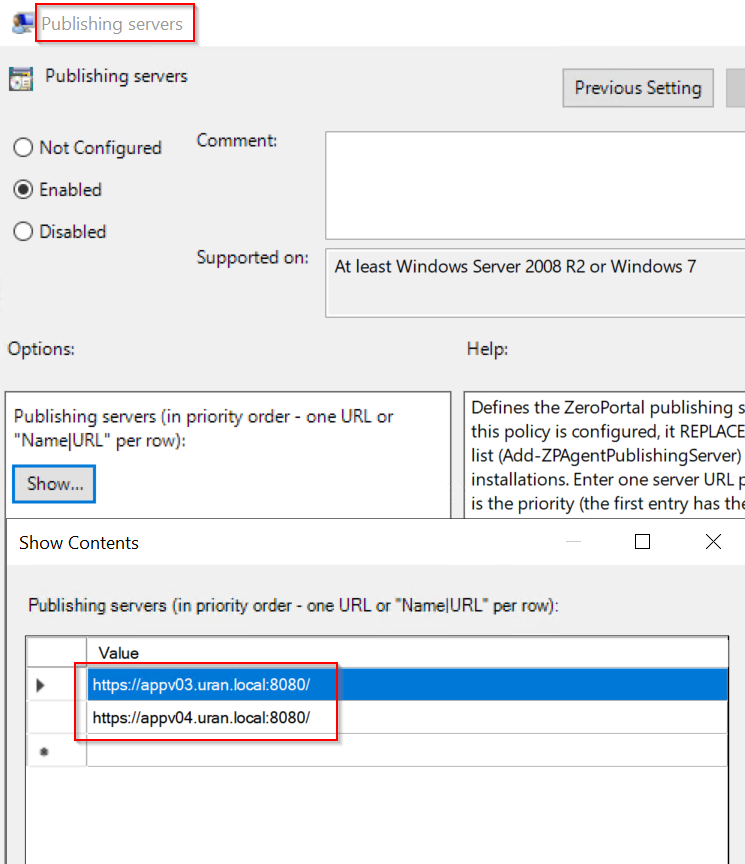
| Publishing servers | The portal URLs, one per line, in priority order. Without them, the agent doesn't know whom to ask. |
| Enable MSIX sync | MSIX packages and App Attach. |
| Enable App-V sync | App-V packages and connection groups. Mind the rule below. |
| Enable policy sync | ZeroPortal policies: drives, printers, desktop, scripts, and the other templates. |
With your own PKI, the same GPO puts the server certificate into the computer's Trusted Root Certification Authorities. 3. Roll out the agent MSI without parameters (GPO software installation, Intune, or any software deployment tool). The MSI is in the portal under Download. The agent enrolls itself at the first sync; the device appears under Known clients. 4. Fine-tuning (sync interval, tray behaviour, running applications) through ZeroPortal policies of type Agent configuration (chapter 10).
Where do I find the ADMX template? It is installed with the agent and sits on every device with the agent under
C:\Program Files\NickIT\ZeroPortalAgent\admx, along with the language foldersde-DEanden-US. There is no separate download.
App-V: only one path per device. If the Microsoft App-V client uses the portal itself as its publishing server, Enable App-V sync stays off. If instead the ZeroPortal agent takes over the App-V packages, enter no publishing server in the Microsoft client. If both run, they publish and remove the same packages in turn: shortcuts disappear and come back, the logs fill up. MSIX and policies are not affected and may run side by side.
Order of precedence: group policy before the ZeroPortal Agent configuration policy
before the local value (Set-ZPAgentConfiguration, MSI parameters). Publishing servers and
the enrollment token exist only in group policy. If a switch is set by GPO, local changes
have no effect; Get-ZPAgentConfiguration shows this in the SetByGroupPolicy column.
Installing the agent
msiexec /i ZeroPortalAgent-<Version>.msi /qn
Parameters are only needed when no group policy applies (test, workgroup):
| Parameter | Meaning |
|---|---|
SERVER= |
Portal URL, if not set by group policy |
APPVSYNC=1 / MSIXSYNC=1 / POLICYSYNC=1 |
Turn on delivery of App-V or MSIX packages and policy processing |
TRUSTCERT=1 |
Do not validate the server certificate (test only) |
NOTRAY=1 / NOTOASTS=1 |
No tray icon, or no notification windows |
ENROLLTOKEN= |
Enrollment token for devices without AD (see below) |
Devices without Active Directory sign in with a key instead of Kerberos: under Global
Configuration → Agent enrollment, create a token and install the agent with
ENROLLTOKEN=<value>; at the first sync the device trades the token for a lasting key.
This path is experimental, meant for pilot installs and single devices, and delivers
only MSIX packages in the user context (no App-V, no App Attach, no machine-wide
install); access to the package share comes from a ZeroPortal policy with SMB
credentials. Details: Devices without a domain (API key).
Every switch, cmdlet, event ID, and the agent's registry layout are described in Client agent: operations and rollout.
8. Distributing App-V packages
- Provide the package: copy the package folder (
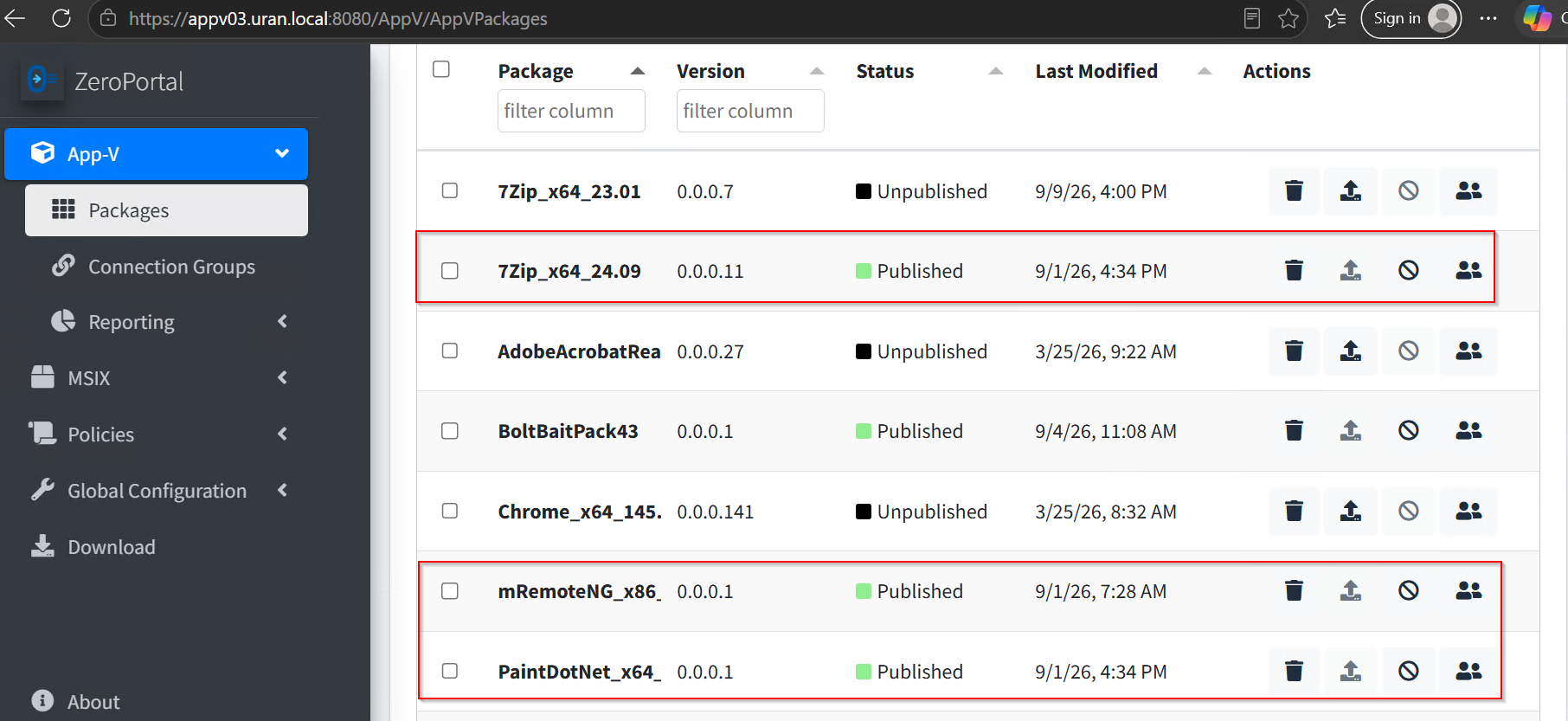
.appv,.xmlconfigurations) onto the App-V share, then under App-V → Packages add the package from the repository. The portal does not scan the share on its own. - Assign it: open the package and enter the AD groups under AD Access. A group of computer accounts delivers machine-wide, a group of users into the respective user's profile.
-
Publish it: set the package to Published. Clients fetch it at the next sync, or right away from the tray icon.
-
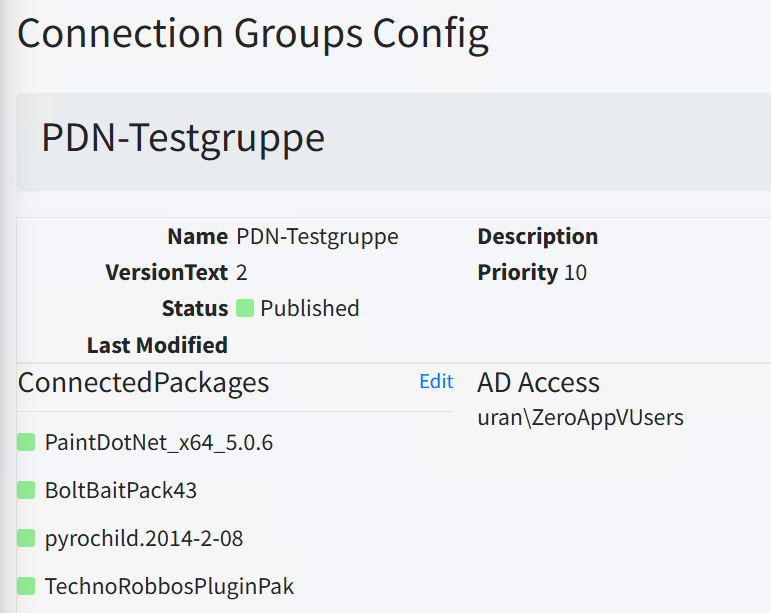
Connection groups (App-V → Connection Groups): run several packages in a shared environment, e.g. an application plus plugin. Assignment works as for packages.
-
Retract it: unpublish, or remove the assignment. The agent takes back a machine-wide publication right away; the package is only fully removed once every user has released it at their next sync or sign-in.
Connecting the Microsoft App-V client
If you use App-V without the ZeroPortal agent, the portal takes the place of the App-V publishing server. You need two addresses, both on your portal:
| Purpose | Address |
|---|---|
| Publishing | https://<portal>:<port>/AppVPublishing |
| Reporting | https://<portal>:<port>/AppVReportReceiver |
By group policy (the usual path): Computer Configuration → Administrative Templates → System → App-V. Under Publishing, enter the publishing address in Publishing Server 1 and turn on refresh at sign-in for computers and users. Under Reporting, turn reports on and enter the reporting address. Under Streaming, decide on the shared content store (see below).
By PowerShell on the client, equivalent and handy for testing:
Add-AppvPublishingServer -Name ZeroPortal -URL 'https://portal.firma.local:8080/AppVPublishing' `
    -GlobalRefreshEnabled $true  -GlobalRefreshOnLogon $true `
    -UserRefreshEnabled   $true  -UserRefreshOnLogon   $true
Set-AppvClientConfiguration -ReportingEnabled 1 `
    -ReportingServerURL 'https://portal.firma.local:8080/AppVReportReceiver'
Sync-AppvPublishingServer -ServerId 1
Whether reports arrive, you see under Reporting in the portal; to send a report right
away, use Send-AppvClientReport -URL '<reporting address>' -DeleteOnSuccess:$false.
Streaming: shared content store or load fully?
| Environment | Recommendation |
|---|---|
| Terminal servers and VDI | Shared content store (Set-AppvClientConfiguration -SharedContentStoreMode 1). Packages stay on the share, nothing lives on the host. Requires a fast, always reachable share. |
| Workstations and notebooks | Load fully. Without the shared content store, the client streams the package at first launch; Mount-AppvClientPackage fetches it in advance, so the application also starts offline. |
Only one path per device. If the Microsoft client fetches the packages itself, Enable App-V sync stays off in the ZeroPortal agent, and vice versa. Both together make the two paths take the packages away from each other (chapter 7).
The ZeroPortal agent instead of the Microsoft client: then enter nothing in the Microsoft client. The portal address comes from the agent's ADMX template; reporting keeps running through the App-V client and is also turned on by group policy. All agent settings are in chapter 7.
Version changes: App-V has no version lock. The version published in the portal is put in place on the client, even if a newer one is there. Going back to an older version is therefore possible by publishing the older version.
Reporting: the portal collects the App-V client's report data (application usage, package state per device and user) under Reporting (chapter 12).
8.6 Taking over an App-V Management Server
Two scripts from Support\PowerShell in the installation move packages, configurations,
entitlements and connection groups from an App-V 5.x Management Server into the portal.
Package files are not copied; the portal points at their existing path.
- On the App-V server, elevated PowerShell:
powershell .\Export-AppVServerConfiguration.ps1 -OutputPath C:\Temp\appv-export.xml - On the portal server, dry run first, then the import:
powershell
   .\Import-AppVServerEasy.ps1 -Path C:\Temp\appv-export.xml -WhatIf
   .\Import-AppVServerEasy.ps1 -Path C:\Temp\appv-export.xml
If the packages have moved to another share:-PackageBasePath \\files01\appv. The reportappv-export.report.htmlappears next to the export file and names every row that was not taken over (usually an AD group that does not exist in the target domain).
Import-AppVServerConfiguration.ps1 is the same import with every switch (rename groups,
skip areas, import everything unpublished); Get-Help on the script lists them. Both
imports can be repeated safely.
9. Distributing MSIX packages
Prerequisites
- Enable MSIX sync is on in group policy (chapter 7).
- The package's signing certificate is trusted on the clients: for your own packages, distribute it by GPO into Trusted People or Trusted Root Certification Authorities. Clients without internet access also need the intermediate and root certificates of the chain (Known issues).
- Clients read the package share as a computer account (machine-wide installation) and as the user. For branch offices, Package source root override points to a local share or DFS; if a package is missing there, the agent takes the central source.
Importing and assigning a package
-
Import (MSIX → Packages → Import): pick
.msix,.msixbundle,.appx, or.appxbundlefrom the repository. The portal reads name, version, architecture, and dependencies.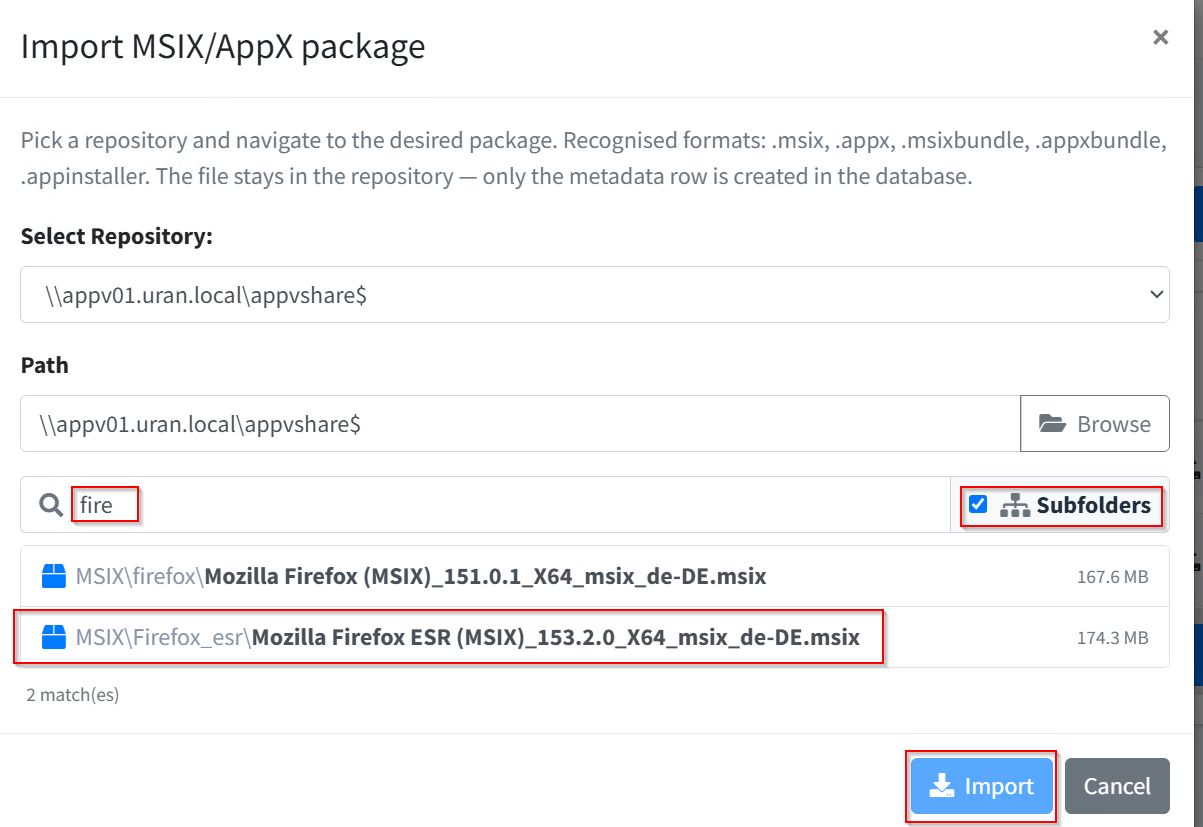
-
Frameworks (dependencies): the package page shows missing frameworks (
Microsoft.VCLibs,Microsoft.UI.Xaml, …). Import looks in the package folder first; otherwise the repository browser opens with the framework name pre-filled. Frameworks sit in the repository once and are shared by every package.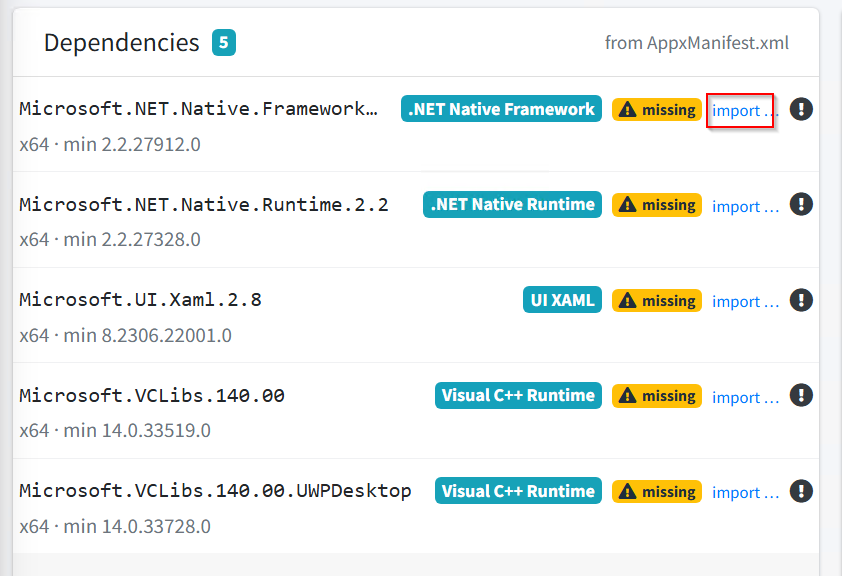
-
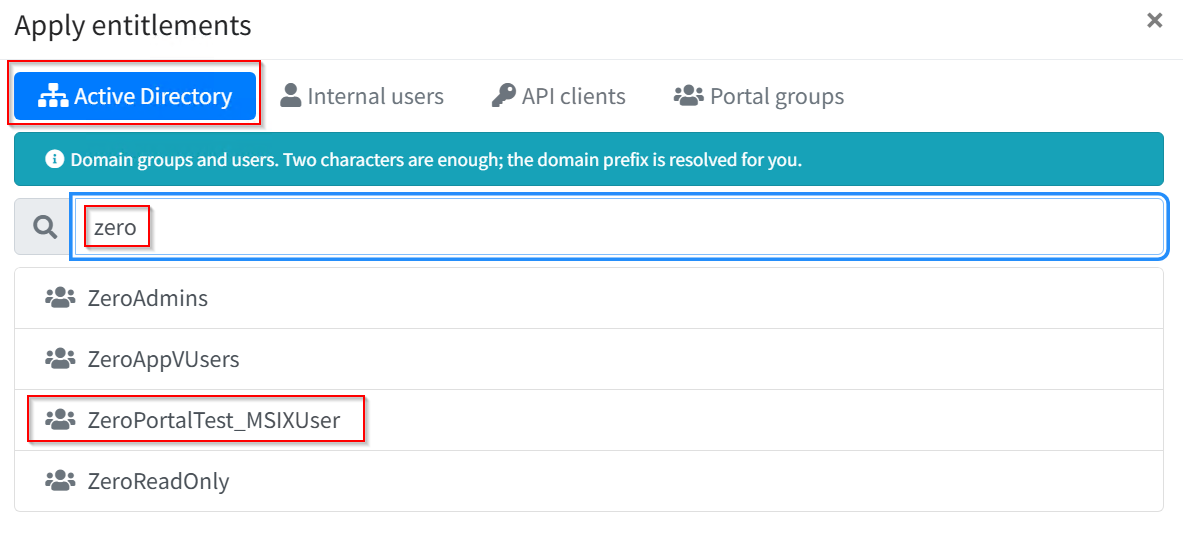
Assign and publish: on the AD entitlements card, pick the recipients: AD groups and individual AD accounts, portal groups, internal accounts, and devices and users from enrollment. Computer assignments install machine-wide; every user sign-in registers the package in the profile.

Delivery format: MSIX or App Attach
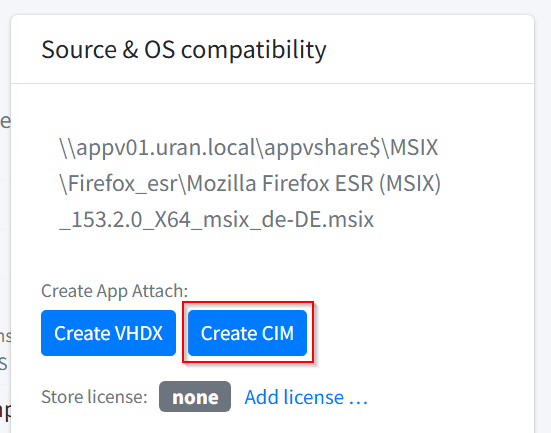
The default is the classic MSIX installation from the repository. Alternatively, a package is mounted from the share as App Attach (VHDX or CIM) instead of copied, which saves space and time on terminal servers. The MSIX delivery format policy sets the format (chapter 10); the portal creates the images itself on request (MSIX → Package → App Attach).
Deploying an older version (downgrade)
Windows refuses to install an older MSIX version over a newer one; the agent only tries a
downgrade when it is explicitly allowed. Default: forbidden. If a newer version is on
the client, the package counts as satisfied without an error, even for a mere format
switch (MSIX or App Attach). Recommendation: allow downgrades per package family
through the Package downgrade control policy (default: forbid everything); the agent
switch MSIX/AllowDowngrade allows it across the board, a policy rule takes precedence.
A permitted downgrade removes the newer version first, then installs the older one; user
data outside the package is kept. Frameworks are never downgraded. If the application
is running, the package is skipped with a reason in the agent log and retried at the next
sync; the agent only closes the application for a format switch
(MSIX/TerminateAppsForFormatSwitch, default on). If the older version needs older
frameworks the client no longer has, it won't start: test downgrades on a test device
first.
Retracting and frameworks
When a publication is lifted, the agent removes the applications first, then the frameworks. A framework stays without an error as long as another package uses it (even one not from the portal); the next sync checks again. Frameworks updated by the Microsoft Store are left alone.
10. Policies
Policies control settings on devices centrally from the portal, independent of the AD structure. The agent fetches them during a sync, applies them before package processing, and takes them back once a device or user leaves the scope.
- Policy set: a container with a priority and a scope (filter) that applies to every policy in it.
- Policy: a group of settings of one type (registry, drives, printers, scripts, desktop, agent configuration, MSIX delivery format, …), optionally with its own filters.
- Filter: AD group, OU (including all child OUs), computer name (
*,?), IP range, environment variable, operating system, session type, time window, registry value, file or folder; combined with AND/OR, each can be negated.
The agent processes computer parts (delivery rules, agent configuration, HKLM, services) in the machine sync and user parts (drives, printers, desktop, HKCU) in the user sync. A set targeting computers (computer name, IP range, OU) also brings its user parts to every user who signs in there (like group policy loopback processing); that is the normal case for VDI and terminal servers. A set targeting only users (user group, user OU) carries no computer parts; a computer group as the only filter carries only the computer parts.
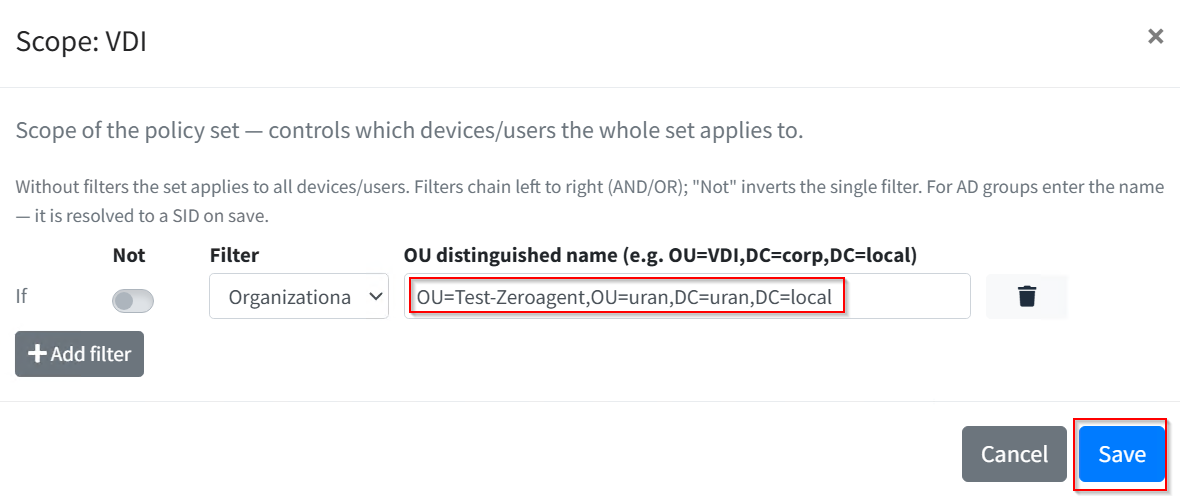
Creating a policy set
- Policies → New set, set the priority and scope.
- In the set, Add policy and pick the type. List types get new rows through the add button; for package families, the list filters as you type.
- Save. Every change raises the policy's revision; reading the history and restoring an
earlier state is done in PowerShell (
Get-ZeroPortalPolicyHistory,Restore-ZeroPortalPolicy).
If two settings contradict each other, the first match wins: first by the priority of the policy set, then by the priority of the policy within the set; the lower number wins.
Delivery rules for MSIX and App Attach
The MSIX delivery format policy sets per package family whether a package goes out as
Msix (the default without a rule), as AppAttachVhdx or AppAttachCim (mount an image
from the share, e.g. for terminal servers and AVD), or not at all (Deny). Each rule:
pattern on the family name (LibreOffice*), optional package type, format. The list is
evaluated top to bottom and the first matching rule wins; specific rules at the top, the
* rule at the bottom. It is a machine policy and also applies to user-assigned packages.
A new policy already contains * / Framework → Msix, because frameworks always come as
MSIX.
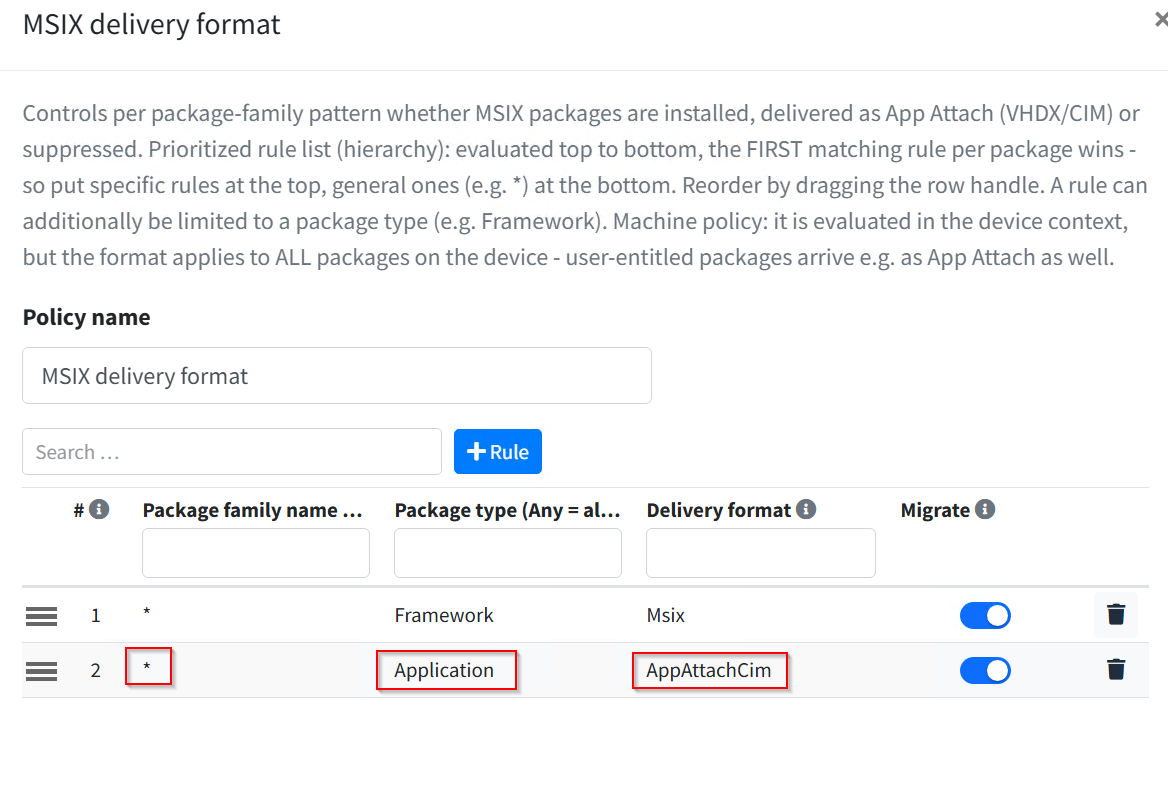
Typical terminal server set: Contoso.Legacy_* → Deny, * / Framework → Msix,
* → AppAttachCim. Workstations without a rule of their own keep getting classic MSIX.
Templates, fields, and which filter applies in which sync: Policies and templates.
11. High availability
A second portal node with a replicated database keeps the sync running when a server fails or is under maintenance. The Primary writes the database; every change in the portal and every licence booking happens here. The Replica follows along through MariaDB replication; clients sync here, the web interface is usable, and the node forwards writes to the Primary. With random server selection in the agent's group policy, the syncs spread over both nodes. The Primary checks the other nodes every 10 seconds, each Replica checks in every 5 minutes (configurable). Global Configuration → High Availability shows the state.
Setup
- Install the second server as in chapter 3.
- On both nodes, enter the same replication password in the configuration tool, step Base Configuration; the path to the MariaDB program files that the wizard needs is also there.
- Let the second node join the cluster (enter the Primary's address). If the Primary already holds data, run a full database sync first (Setting up high availability).
- On the second node, under Global Configuration → High Availability, run the replication wizard: a unique server ID for both nodes, the Primary's host and port.
- Check on the same page: both nodes green, replication lag 0.
Pointing clients at both servers
Enter both URLs in the Publishing servers group policy; the order is the priority.
Without group policy, locally with Add-ZPAgentPublishingServer. If the first server is
unreachable, the agent switches to the next after 10 seconds and avoids the failed one for
10 minutes; this applies equally to packages, App-V, and policies. A server that answers
but reports an error is not blocked, only skipped.
Updating the cluster
- Update the Primary first: install the MSI, then run the database update with
ZDBInstallUpdate.exe(command in chapter 12). - Then the Replicas, each also with
ZDBInstallUpdate.exe. Never migrate a Replica before the Primary. - Check the cluster page.
Failure scenarios and recovering a failed Primary are described in Setting up high availability.
12. Operations: backup, logs, audit, updates
Backup and recovery
Under Global Configuration → Configuration, section Backup and recovery (full
administrators only), Download backup creates an XML file with the whole portal
configuration in five areas, each of which can be deselected on restore: portal
configuration (repositories, email and notifications, proxy, licence files), users,
groups, and permissions (portal groups, levels, internal accounts, sign-in providers, API
clients), policies, the MSIX catalogue, and the App-V catalogue (packages, connection
groups, assignments). Restore reads the file: existing entries are updated by their ID,
missing ones created, stored passwords never overwritten. The PowerShell module processes
the same file (Export-ZeroPortalConfiguration, Import-ZeroPortalConfiguration), for
example for daily backups via a scheduled task.
Not in the backup: passwords, secrets, and API client keys; node-specific settings
(appsettings.json, LDAP connection, node and cluster identity); history data (audit,
policy history, delivery history, App-V reporting); known devices and users, rollout
tokens; the package files themselves. A complete recovery plan therefore covers:
- The configuration backup from the portal (regularly, e.g. daily via PowerShell).
C:\Program Files\ZeroPortal\appsettings.jsonper node.C:\ProgramData\ZeroPortal\DataProtectionper node (keys for stored passwords; without this folder, stored passwords must be entered again).- A MariaDB dump (
mariadb-dump), if reporting and audit data should be kept. - The package share.
Logs
| What | Where | Note |
|---|---|---|
| Portal | C:\ProgramData\NickIT\ZPServer\Logs (older installs: C:\Windows\Temp\ZeroPortalLogs) |
Default level Warning: start, warnings, errors only |
| Agent (device) | C:\ProgramData\NickIT\ZeroPortalAgent\Logs\agent-<date>.log |
one file per day |
| Agent (user) | usersync-<user>-<date>.log in the same folder, or under %LocalAppData%\NickIT\ZeroPortalAgent\Logs |
one file per day and user |
- Portal log: service start and stop, database and certificate problems, errors on
requests; who changed what in the portal is in the audit trail. At level Warning it
stays small (a few KB a quarter); if it grows faster, it contains an error, or the level
(
Logging:Console:LogLevel:Defaultinappsettings.json) was not set back after troubleshooting. Restart the service after a change. - Agent log: one line per package operation with event ID, package name, result, and
on failure the Windows error code, plus decision lines and a summary per sync. Default
level Information; for troubleshooting set Log level by group policy or
Set-ZPAgentConfiguration -LogLevel Debugto Debug, and back afterwards. The agent does not write to the Windows event log. Logs are not deleted automatically: remove files older than 30 days with the Scripts policy or a scheduled task;Clear-ZPAgentLogdeletes them all at once.
Audit
The portal records who changed what and when: assignments, publications, policies, permissions, backups. The entries are under Global Configuration → Audit trail; switching it on and off and the retention in days are set on the configuration page in the section of the same name (0 = unlimited, maximum 3650 days). If the audit trail is switched off, exactly that is still recorded and a warning email goes out.
Notifications
The portal sends fourteen different notifications, each switchable on its own and with its own cooldown, so a persistent condition does not flood the mailbox:
- Operations: database unreachable, server certificate expiring, audit trail switched off.
- Licences: licence expiring, quota exceeded.
- Cluster: node failed and reachable again, replication stopped, failover (this node is now Primary), Primary unreachable and reachable again.
- Security and maintenance: API key used from a foreign machine, App-V reporting data growing large, agent suppressed a repeated correction.
Reporting (App-V only)
Reporting shows the App-V reporting data: which applications were launched on which devices by which users, and which package state is there. Setup and retention under Reporting → Configuration. There is no reporting for MSIX; there, the agent log and the tray notifications are the source of information.
Updating a single node
- Take a backup (section Backup and recovery).
- Install the new server MSI over the existing installation.
- Run the database update. Without this step, the service starts with an outdated
database and says so in the log:
"C:\Program Files\ZeroPortal\ZDBInstallUpdate.exe" "C:\Program Files\ZeroPortal\appsettings.json" --admin-user root --admin-password <password> - Restart the service, open the portal, check the version in the footer and the portal log.
- Roll out the new agent MSI from the download centre to the clients by GPO or software deployment. It installs over the existing version; after a big version jump, it is safer to uninstall the old version and install the new one fresh.
Left untouched: appsettings.json, the certificate, the database (apart from the schema
update), the packages on the share and, since version 1.0.33, the service account: if the
ZeroPortal service runs under a gMSA or another account, the update keeps it. For a fresh
install without the wizard, SERVICEACCOUNT sets the account right away, without a password
for a gMSA:
msiexec /i ZeroPortal-<version>.msi /qn SERVICEACCOUNT=DOM\gmsa-zeroportal$
A classic service account also needs SERVICEPASSWORD=… on a fresh install; an update
keeps the stored password, it does not have to be given again. In a cluster, follow the order in
chapter 11.
Updating MariaDB
The portal knows MariaDB through MySqlSettings.BinPath (program files, for dumps, backup,
and a replica's full sync) and MySqlSettings.DataPath in appsettings.json; the portal
start only checks the minimum version.
Patch within a series (11.8.6 to 11.8.9): run the installer, it updates the same folder. Nothing to do in ZeroPortal.
Series change (11.8 to 12.3; also 12.1 to 12.2, because every 12.x is its own series with its own program folder), per node; in a cluster the Replicas first, the Primary last (a Replica may temporarily be newer than its Primary, never older):
- Take a backup (section Backup and recovery).
- Start the new series' installer and choose Upgrade existing instance. It leaves the
data directory where it is, attaches the service to the new program files under
MariaDB <series>\bin, runsmariadb-upgrade, and removes the old series. - Check that the service is running and the portal starts (
DB version OKin the portal log). - Start the configuration tool, click Auto-detect on the database page, check that
BinPathpoints to…\MariaDB <series>\bin, and save. The tool does not pick up the old path by itself. - Replication, heartbeat, and failover keep running without further change: everything replication needs is in the my.ini in the data directory, and that stays where it was.
Afterwards the replication wizard's my.ini functions no longer find the file, because they
look under …\MariaDB <new series>\data. Make my.ini changes by hand, or move the data
directory, including --defaults-file in the service command, into the new folder.
Uninstalling
Server: uninstalling through Apps & Features removes the program files under
C:\Program Files\ZeroPortal. What remains: the data directory
C:\ProgramData\NickIT\ZPServer with the logs, the MariaDB database (MariaDB is a separate
installation), and the package share.
Client: uninstall the agent MSI through Apps & Features or msiexec /x. The agent
removes no packages when uninstalled; installed App-V and MSIX packages stay on the device.
If they should go, lift the publication in the portal first and wait for a sync.
13. Emergencies and troubleshooting
Nobody can get into the portal
At every start, the service checks whether the AD group entered in appsettings.json
under AccessGroups:FullAdmins and the optional emergency account RootUser have full
rights, and only recreates what is missing (portal group Portal administrators,
membership, permission on every area); the event is logged as a warning in the portal log.
- Sign-in or permission? A repeated password prompt is a sign-in problem, usually the missing intranet zone, or an SPN missing for an alias name (chapter 3). The message "no access" means: signed in, but not permitted.
- Check the group: is the right AD group under
AccessGroups:FullAdmins, and are you a member? This entry always applies. Added only a moment ago, or the group created just now? Then sign out of Windows and back in: the membership is in the token only after sign-in,klist purgeis not enough, least of all on the portal server itself. - Restart the service. Afterwards the group's members have every right again. If neither a group nor an emergency account is configured, the service repairs nothing and logs an error: enter one of the two values and restart.
- Emergency account: if a
RootUseris set up, sign in with it.
After the rescue, anchor the rights on a portal group again, not on a single person.
The Primary fails (cluster)
- Package delivery keeps running on the Replicas, because reads always happen locally. Administration, enrollment, and licence bookings wait; every page shows the bar "No Primary reachable", and the Replica sends an email.
- If the Primary returns, the cluster catches up on its own, usually within a minute. If it doesn't come back, run Promote to Primary… on the Replica's HA page.
- A Replica that has been missing for more than seven days, or is reset from a snapshot, needs a full database sync (Setting up high availability).
Other emergencies
| Case | What to do |
|---|---|
| Server certificate expired | Configuration tool, step Certificate, pick a new certificate, Save & Restart Service. The portal warns by email beforehand. |
| An MSIX package's signing certificate expired | With a timestamp in the signature, no problem: the package keeps installing. Without a timestamp it must be re-signed and imported again. The package page shows whether a timestamp is present. Packages already installed keep running. |
| Configuration accidentally destroyed | Restore the backup (chapter 12). Stored passwords stay unchanged. |
| Database lost | Import the MariaDB dump, then the configuration backup. Without the dump, audit and reporting data are lost, the configuration is not. |
| Agent on a client broken | Uninstall and reinstall the agent (chapter 7). Installed packages are kept; the next sync restores the target state. |
| A package is wrongly going out to many devices | Unpublish it in the portal. Clients take it back at the next sync. To only pause it, remove the assignment instead. |
Common symptoms
| Symptom | Cause and fix |
|---|---|
| Login window when opening the portal | Portal URL not in the intranet zone, or an alias name without SPN (chapter 3). A missing permission would be an error page, not a login window. |
| "No access" despite group membership | Group not in a portal group, or level None. New Kerberos ticket after a group change: sign out and back in. |
| Portal does not start | Read C:\ProgramData\NickIT\ZPServer\Logs\ZeroPortalLogs.log. Common: MariaDB not started, certificate expired, database update forgotten after an MSI update. |
| Package does not arrive on the client | On the client, Get-ZPAgentSync: is MSIX or App-V on? After installation all three areas are off (chapter 7). Then Get-ZPAgentStatus and Sync-ZPAgentPublishingServer, check assignment and publication in the portal, then that day's agent log. |
| Packages missing for individual users | Check the permission in the portal; new AD groups only apply with a new Kerberos ticket (ADMX setting Purge the user's Kerberos tickets before a user sync). |
| Tray reports "failed" | Click the notification: it opens the log folder. The error line names the package, error code, and cause. |
| MSIX error 0x800B0109 | Signing certificate not trusted on the client (chapter 9). |
| MSIX error 0x80073D06 | Downgrade refused by Windows. Allow the downgrade by policy, or publish a newer version. |
| MSIX error 0x80073D02 on removal | The framework is still used by another package. Nothing to do; it stays until unused. |
| MSIX error 0x80073CF3 on installation | A required dependency is missing or too old. Import and assign the matching framework (chapter 9). |
| App-V package missing from the Start menu | Check the package in the user context (Get-AppvClientPackage). The shortcut sweep is off by default; if it is on, check whether it applies. |
| App-V application starts very slowly the first time, progress bar to 100 % | The package streams completely because no primary feature block was recorded during sequencing. Re-sequence, or turn on the shared content store. Antivirus exclusions don't change this. |
| App Attach does not mount | Is the share readable from the client as a computer account? Is the image file in the repository? The agent log shows the path and error code. |
| Client certificate warning | Server certificate not in the client's chain of trust. Distribute the certificate by GPO; TRUSTCERT=1 only for tests. |
| Licensing page shows an overage | Counts the last 90 days; retired devices drop out after 90 days. Load a licence file or check the mode. |
| Replica shows lag | Check MariaDB replication (High Availability page, SHOW REPLICA STATUS). After a network interruption it usually catches up by itself. |
For error reports to the vendor: portal version (footer), agent version
(Get-ZPAgentStatus), that day's agent log, and the relevant line from the portal log.
14. Reference
Paths and ports
| Value | |
|---|---|
| Portal installation | C:\Program Files\ZeroPortal |
| Portal configuration | C:\Program Files\ZeroPortal\appsettings.json |
| Keys for stored passwords | C:\ProgramData\ZeroPortal\DataProtection |
| Portal log | C:\ProgramData\NickIT\ZPServer\Logs (older installs: C:\Windows\Temp\ZeroPortalLogs) |
| Database update | C:\Program Files\ZeroPortal\ZDBInstallUpdate.exe |
| Configuration tool | C:\Program Files\ZeroPortal\ZeroPortalConfigTool.ps1 |
| Agent installation | C:\Program Files\NickIT\ZeroPortalAgent |
| Group policy template (ADMX) | C:\Program Files\NickIT\ZeroPortalAgent\admx |
| Agent logs | C:\ProgramData\NickIT\ZeroPortalAgent\Logs |
| Portal port | set in the configuration tool (HTTPS), e.g. 8080; firewall rule ZeroPortal Inbound <Port> |
| MariaDB | 3306, open between the nodes in a cluster (rule from the replication wizard) |
| Clients and portal → share | SMB 445 |
| Agent inbound | no port; the agent only connects outbound |
| All ports at a glance | chapter 3, section Firewall and ports |
Agent switches (selection)
By group policy (ADMX, chapter 7), by the ZeroPortal Agent configuration policy, or
locally with Set-ZPAgentConfiguration -<switch> <value>; group policy takes precedence.
Every switch with explanation: Client agent: operations, rollout and group policies.
| Switch | Default | Meaning |
|---|---|---|
MSIX/SyncIntervalMinutes |
60 | Interval of the periodic sync |
Agent/SyncJitterMinutes |
10 | Random delay of 0 to n minutes |
Agent/ServerFailover |
on | One server per sync, the next one if unreachable; off = work through every server (independent portals) |
Agent/FailoverTimeoutSeconds |
10 | Wait per server before switching; raise it for heavily loaded servers, otherwise a slow server counts as dead |
Agent/ServerBlacklistMinutes |
10 | How long a failed server is avoided |
Agent/PurgeUserTicketsBeforeSync |
off | klist purge before every user sync, so new group memberships apply right away |
Agent/LogLevel |
Information | Agent log level (None to Debug) |
MSIX/AllowDowngrade |
off | Allow downgrades across the board; a policy takes precedence |
MSIX/DeferRemovalWhileInUse |
on | Defer removal while the application runs; at the latest after MSIX/RemovalIdleTimeoutHours (24) |
MSIX/TerminateAppsForFormatSwitch |
on | Close the running application for an MSIX/App Attach format switch; off = postpone the switch while it runs |
Important events in the agent log
| ID | Meaning |
|---|---|
| 2507 | Framework still needed in the device context and stays installed |
| 2516 | The same in the user context |
| 2538 | Downgrade not allowed, package counts as satisfied; the same ID also reports a user registration switched to App Attach |
| 3620 | App Attach requested, but no reachable image in the requested format; falling back to MSIX |
| 4000 | Service startup error with the full cause |
| 4501 | Deploying a package in the device context failed (with error code and message) |
| 4502 | Retracting a package in the device context failed |
| 4512 | Removal in the user context failed |
| 4531 | Mounting an App Attach image failed, falling back to MSIX |
Further documents
| Topic | Document |
|---|---|
| First setup step by step with screenshots: GPO, agent, App-V, MSIX, policies | Quick Admin Guide |
| Agent: installation, switches, tray, registry | Client agent: operations, rollout and group policies |
| Driving the agent from PowerShell | Agent cmdlets (PowerShell) |
| Permissions, enrollment, licences, audit | Users, permissions, licences and logs |
| MSIX, frameworks, App Attach, downgrade | Distributing MSIX packages |
| Policies: structure, templates, PowerShell | Policies and templates |
| Setting up and running a cluster | Setting up high availability |
| Devices without AD | Devices without a domain (API key) |
| Sign-in problems, slow MSIX installation without internet | Known issues |