
Users, permissions, licences and logs
This document describes who may sign in to the portal and what that person sees there, how devices without Active Directory get into the system, how ZeroPortal counts licences, and where you can look up who changed what and when. All pages are in the menu under Global Configuration. Related guides: Administration Handbook, Devices without a domain (API key), Distributing MSIX packages, Setting up high availability.
1. What is this?
ZeroPortal is divided into nine areas (table in the appendix). For each area you grant a level: None, Read or Administrate. Anyone with None does not see the menu item and cannot open the page through the address bar either. Levels are attached to AD groups (recommended), AD accounts, internal accounts with a password, enrolled devices and users without a domain, or to portal groups that bundle such members.
Above everything stand the full administrators: the AD group entered in the configuration tool and the optional emergency account. They may always do everything, and only they manage permissions, portal groups, internal accounts, agent enrollment, licensing, the audit trail, and backup and recovery.
Licences are counted, not enforced: 30 are included, more come with a licence file. The audit trail records who gave what to whom or took it away; entries are only appended, never changed or deleted.
2. What is this good for?
- The service desk looks but changes nothing: a portal group with Read on App-V, MSIX and Reporting. Packagers get Administrate on MSIX and App-V, None on Configuration.
- An external contractor without an AD account gets an internal account with a password; a branch office without a domain enrolls with a rollout token. Both are then granted rights like any other member.
- Terminal servers cost no device licences: in Per user mode each person counts once, whether on a PC, on a session host, or both.
- "Who gave this person access to this package?" The audit trail answers that even months later, with the name the package had at the time.
3. How do I use this?
Only full administrators see and open the pages Permissions, Portal groups, Internal accounts, Agent enrollment, Licensing and Audit trail.
3.1 Defining the full administrators
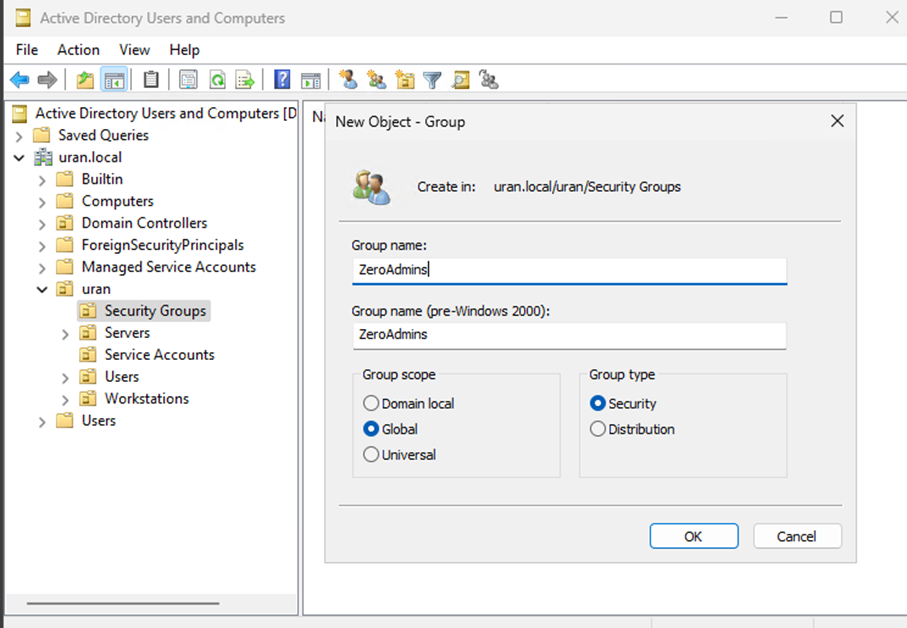
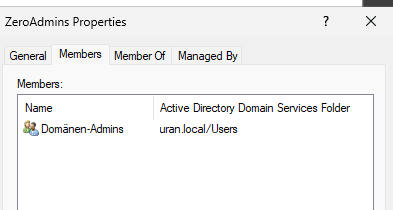
- Create a security group in Active Directory, for example
ZeroAdmins, and add the administrators.
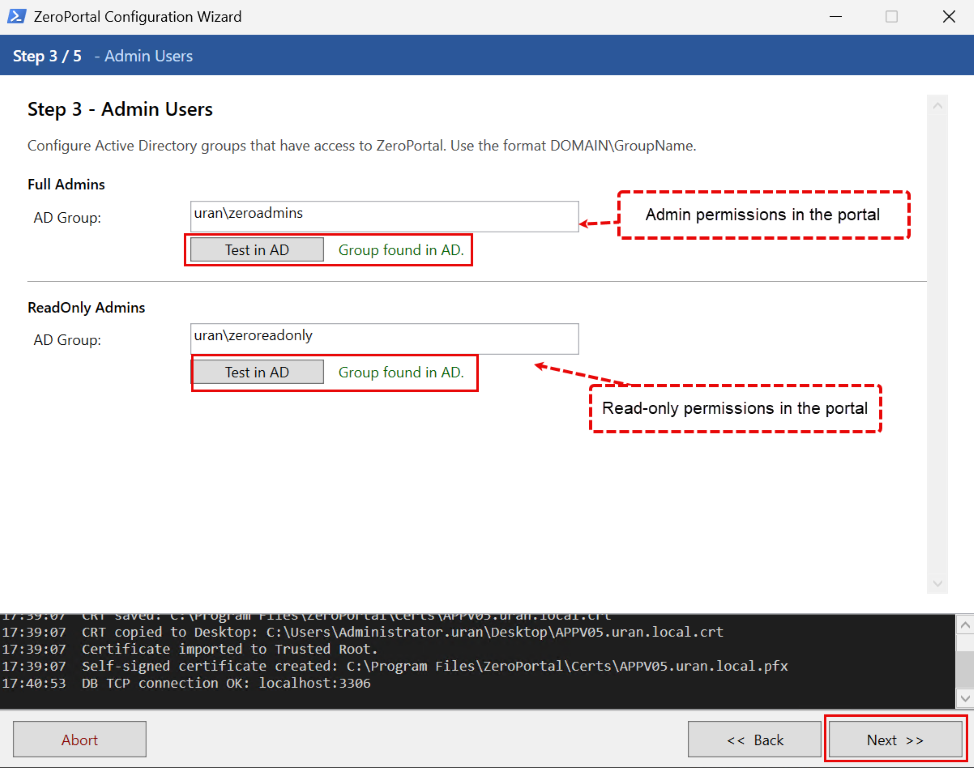
- Enter the group in the configuration tool in step 3 Admin Users under Full Admins
(format
DOMAIN\Group) and check it with Test in AD. Optionally, a second group under ReadOnly Admins gets Read on all areas.
- Both values are stored in the server's
appsettings.json(section AccessGroups). After a change there, restart the ZeroPortal service. - From them the portal creates the portal groups Portal administrators (Administrate, all
areas, with
RootUseras a further member) and Portal read-only (Read, all areas). The administrators group is checked at every service start and recreated if needed. The read-only group is created only once; if you delete it, it does not come back.
Emergency account (root). For portals without Active Directory, or as a way out: create a
password hash with New-ZPRootPasswordHash (PowerShell module ZeroPortal), enter it in
appsettings.json and restart the service:
"RootUser": { "UserName": "root", "PasswordHash": "ZPH1:…" }
The account signs in at https://<portal>/Account/Login, bypasses all module permissions,
and exists only on the nodes where it is entered. Every sign-in is recorded in the audit
trail. Do not use it for daily work.
3.2 Creating a portal group
Grant rights and package assignments to portal groups, not to individual people.
- Open Global Configuration → Portal groups, enter a name and description, and click Create.
- Click the group, then Add member. Sources: Active Directory (groups and users), Internal accounts, API clients (enrolled devices and users without a domain). A portal group cannot contain another portal group.
- Grant rights under Permissions (section 3.3) or directly on the MSIX package (see Distributing MSIX packages).
Disable suspends the group's package assignments; the members stay. Delete removes the group and its memberships; rights that came only through it end.
| Portal group | Rights | Members |
|---|---|---|
| Portal administrators | everything (full administrators) | Company\ZeroAdmins |
| Package management | MSIX: Administrate · App-V: Administrate · Reporting: Read | Company\SW-Packagers |
| Service desk | MSIX: Read · App-V: Read · Reporting: Read | Company\Helpdesk |
3.3 Granting areas and levels
- Open Global Configuration → Permissions, click Add, and choose the source (AD, Internal, API client, Portal group) and the principal.
- Click the new row. In the Rights of … dialog, set None, Read or Administrate per area (or under All modules) and click Save. The higher level wins.
- Remove all rights deletes the row.
- Check the result with a test account that is only in this group.
3.4 Creating an internal account
For people without a domain account; domain users sign in with Windows authentication.
- Open Global Configuration → Internal accounts, enter a user name, optionally a display name, and a password (at least 8 characters), and click Create account.
- Add the account to a portal group or grant it rights under Permissions (source Internal).
- The person signs in at
https://<portal>/Account/Login. The form only appears if an emergency account or an active internal account exists.
Per account: Set password, enable/disable, delete (also removes memberships and permissions). An internal account never becomes a full administrator.
3.5 Adding a device or user without a domain
Without a domain, a computer gets a key of its own: you create a time-limited rollout token, and the device trades it for its permanent key at the first sync.
- Open Global Configuration → Agent enrollment and turn on Key-based access. While it is off, every enrollment and every existing key is rejected.
- On the Rollout tokens card, enter a name and Valid (days) (default 14, at most 365) and click Create. The dialog shows the token value and the installation command:
msiexec /i ZeroPortalAgent.msi SERVER=https://portal.firma.de:8080 ENROLLTOKEN=zpe_… APPVSYNC=1 MSIXSYNC=1 POLICYSYNC=1
With a self-signed certificate, append TRUSTCERT=1 or import the portal certificate on
the device. For domain-joined devices there is also the group policy ZeroPortal Agent →
Authentication → Enrollment token.
3. At the first sync the device receives a machine key, and the signed-in person receives a
user key at the user sync (user@devicename). The device appears under Known
clients, the person under Known users; these lists contain every device and person
that has checked in, and they are the basis of licence counting.
4. Grant rights to both like any other member: in a portal group (source API clients) or
directly on the MSIX package. App-V assignments accept AD groups only. What comes next is
described in Devices without a domain (API key).
| What happens | |
|---|---|
| Close / reopen token / Reopen for 14 days | The value stays the same, distributed installation commands keep working. Show token value only works on the node that created the token |
| Delete token | Keys already issued stay valid |
| Rename client | Your display name is no longer overwritten by the device |
| Disable key | Access blocked immediately, permissions stay |
| Delete client and key | Entry, key and permissions gone. The device enrolls again only after its stored key is removed there (registry value ApiKey under HKLM\Software\NickIT\ZPAgent\Auth) and a valid token is present; the old assignments do not come back |
3.6 Choosing the licence mode and uploading a licence file
Open Global Configuration → Licensing. At the top are Counted, Users (last 90 days) and Devices (last 90 days); the counting mode decides which number counts.
- Choose the counting mode: Per user (default, intended for terminal servers) or Per device. The change takes effect immediately on all nodes.
- Click Upload licence and select the vendor's licence file. The portal checks the signature; a rejected file is not stored, and the message gives the reason. A file with a known licence number replaces the existing entry.
- The Licence files list shows quantity, mode, validity and state (Active, Expired, Not yet valid, Not counted (other mode)). Remove deletes the file from the portal; keep the original.
3.7 Reading the audit trail
Open Global Configuration → Audit trail. The table shows When, Who, Action, Target, Detail and Node, newest entries first; at the top you filter by action and period (7, 30, 90 days, all). Recorded are all changes to rights, portal groups, memberships, MSIX assignments, internal accounts, agent enrollment, licences and counting mode, sign-ins of the emergency account, backups, the audit settings themselves, and every alert raised. The target is stored with the name it had at the time of the change. Main switch and retention: see the appendix.
3.8 Setting up e-mail notifications
Under Global Configuration → Configuration, section E-Mail Notifications: turn on Enable E-Mail Notifications, enter the SMTP server, port, sender and recipient addresses (if needed user, password, SSL), save, and click Send Test E-Mail. In the Alerts table you switch off individual alerts. Cooldowns: Repeat warnings after (hours) (default 168), Repeat critical alerts after (hours) (default 1); 0 removes the cooldown.
4. Rules: when does what apply
Permissions
- The highest level wins. Per area, the maximum of all rows that apply to the caller counts (own row, AD groups, portal groups, All modules). There are no deny rules; a portal group can raise access, never lower it.
- Portal changes apply from the next page load. A changed AD group membership only takes effect when the person signs in again.
- SID, not name. Renaming in Active Directory changes nothing; a group that was deleted and created again has a new SID and must be added again.
- The machine key is bound to the device. Presented from another computer, the portal reports API key used from another machine. The user key belongs to the person and may accompany them to other devices.
Licences
- Only the ZeroPortal agent triggers a licence. Anyone who gets App-V solely through the Microsoft App-V client and uses the portal only as a publishing server needs no licence and is not counted.
- 30 plus file. Licence files add up with the 30 included licences and with each other, as long as they match the configured mode; files for the other mode stay stored and do not count. 30 days before a file expires, Licence expires soon goes out; from the expiry date it no longer counts.
- Counting window 90 days. A user or device counts as long as it has synchronised through the agent within the last 90 days; after 12 months without contact the entry is deleted.
- The mode counts one dimension. Per user counts people, Per device counts devices. Session hosts never count as devices; what counts are the devices people connect from. The mode is set on the licensing page, not by the file.
- Counting never blocks. Over the limit, delivery carries on; anyone holding a licence renews it, only new requests are refused. The portal sends More in use than the licence covers, and the agent shows the user at the user sync "No licence is free for you …" and asks again after 4 hours. If the portal is unreachable, nothing is booked and nothing is shown.
Audit and notifications
- Switching off leaves a trace. If the audit is switched off, exactly that is the last entry, and Audit trail switched off goes out.
- Every alert is also in the log, regardless of the mail outbox. The cooldown slows mail and log entry alike. Only the Primary sends e-mails.
5. Operations and troubleshooting
Logs. Portal: C:\ProgramData\NickIT\ZPServer\Logs\ZeroPortalLogs.log (ROOT LOGON,
License upload refused, Enrollment:); who changed what in the portal is in the audit
trail, not in the log. Agent: C:\ProgramData\NickIT\ZeroPortalAgent\Logs
(agent-<date>.log, usersync-<user>-<date>.log); event 2511 = enrollment failed,
2530/2531 = licence refused or booking failed, the sync ran anyway.
Nobody can get in any more. A repeated password prompt is a sign-in problem (intranet
zone, SPN; see Known issues); the Access denied page means signed in, but not permitted.
Then: is the right group under AccessGroups:FullAdmins in appsettings.json, and are you a
member? This entry always applies, even if every permission was removed in the portal; when
the service restarts, the portal repairs the group Portal administrators and its right on
all areas. Otherwise use the emergency account at /Account/Login or set one up (section
3.1).
| Symptom | Cause | Fix |
|---|---|---|
| Menu item missing, address bar returns Access denied | Level None for this area | Check the level under Permissions, including the account's portal groups |
| Sign-in form missing or rejects everyone | No emergency account and no active internal account, or PasswordHash faulty |
Enter RootUser with a hash from New-ZPRootPasswordHash, restart the service |
| Device does not enroll (agent log 2511) or is suddenly rejected | Key-based access off, token closed or expired, key disabled, certificate not trusted | Check the switch, token and key under Agent enrollment; TRUSTCERT=1 or import the certificate |
| Alert API key used from another machine | Machine key copied (image clone, registry export) | Disable the key or delete the client; enroll the device again with a token |
| User sees "No licence is free for you" | Count above the quota | Check the licensing page, let old devices or users drop out of the window, buy more licences; nothing is blocked |
| No e-mails although alerts are switched on | Outbox incomplete, cooldown active, or node is a Replica | Send Test E-Mail; alerts are recorded in the audit trail anyway |
6. Appendix
Areas and levels
One level per area: None (menu item invisible, call refused), Read, Administrate.
| Area | Content |
|---|---|
| App-V | App-V packages and connection groups |
| Reporting | App-V reporting |
| MSIX | MSIX packages and App Attach |
| Policies | Policy sets and policies |
| Download | Download area with the agent MSI |
| Configuration | Repositories, e-mail, proxy, audit settings (not: backup) |
| High Availability | Cluster and replication |
| Node Settings | Settings of the individual server |
| Permissions | Shown, but reserved for full administrators |
Audit settings
Global Configuration → Configuration, section Audit trail: Record administrative changes (main switch) and Keep entries for (days) (0 = unlimited, at most 3650). With a period above 0, the Primary deletes older entries once a day and records the deletion itself in the log.
Licence alerts
| Alert | Severity | When |
|---|---|---|
| Licence expires soon | Warning | 30 days before a licence file expires |
| More in use than the licence covers | Warning | a licence request was refused; once per cooldown |